Image to Video
Turn Any Photo into a Video With AI
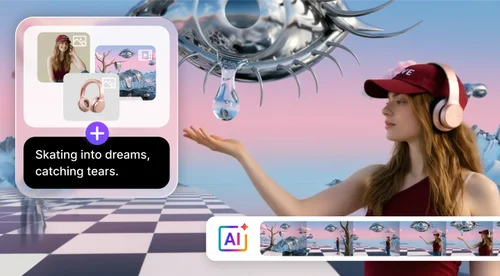
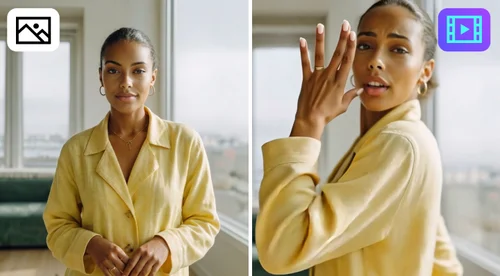
Upload a photo, add a prompt, and choose an AI model to generate motion, sound, and dialogue. New users get their first video free, with no watermark and up to 1080p output.
Why Use MyEdit to Turn Images into Videos
Control Exactly How Your Video Starts and Ends
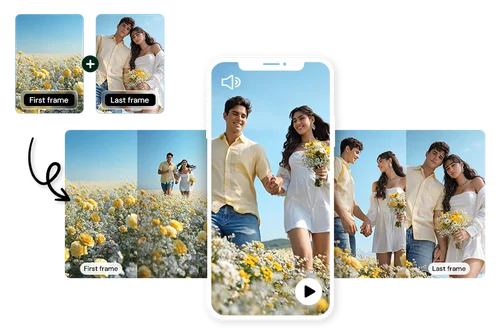
Set the first and last frame of your clip and let AI fill in the motion between them. This gives you control over how the action begins and ends, so transitions come out smooth and predictable without manual editing.
Convert Any Image into a Video With a Simple Prompt
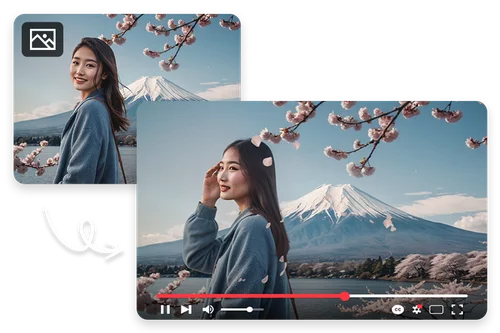
Upload a photo and enter a text prompt to animate it the way you want. Describe the motion, mood, or camera move, like "add a slow zoom with falling snow," and the AI turns the still image into a video. It works for personal memories and social content alike.
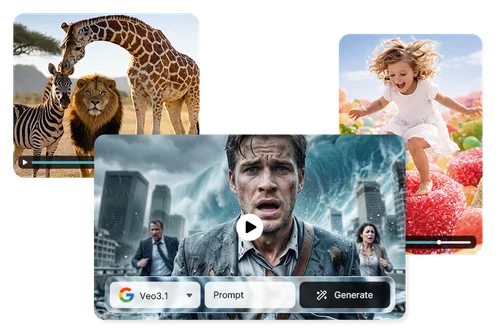
Pick the Right AI Model for Your Project
Choose from leading AI video models in one place, including Veo, Kling, Seedance, PixVerse, Vidu and more. Each has its own strengths, from cinematic motion to fast, simple animation, so you can match the model to the look you need. New models are added as they launch.
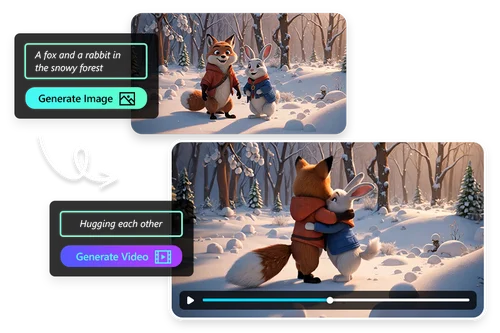
Combine Image and Video Generators to Create AI Videos From Scratch
No photo to start with? Generate one first with our AI image tools, then bring it straight into the image to video generator. You can take an idea from text to image to finished video in one place, without switching tools.
How to Convert an Image to Video
 Step 1
Upload Your Image
Click Import a Photo to choose an image from your device, then crop it to the aspect ratio you want.
Step 2Pick a Model and Enter Your Prompt
Choose a model such as Veo, Kling, or Seedance. Enter a prompt and let the AI generate motion, and audio if the model supports it.
Step 3Preview and Download Your Video
When generation finishes, preview the result in MyEdit and decide whether to download. Save it to your device at up to 1080p with no watermark.
Why Use MyEdit to Turn Images into Videos

Animate Photos With a Prompt
Turn any photo into motion by describing what you want. Make people smile, hug, or wave, or add camera movement to a still scene.

Generate Source Images in the Same Place
No photo to animate? Create one with AI Image Generator or AI Photoshoot, then send it straight to the image to video tool for a smooth result.

Built-in Sound and Dialogue
Choose an audio-capable model like Veo or Kling to generate synchronized sound, or Happy Horse for lip-synced speech, with no extra editing.

Many Leading AI Models
Switch between models like Veo, Kling, Seedance, PixVerse, Vidu, and Happy Horse in one place to get cinematic shots or quick social clips without juggling tools.
First and Last Frame Control
Set the opening and closing frame to direct your clip, and AI fills the motion between them for clean, professional transitions.

Works in Your Browser
Create videos from photos online with no install and no special skills. Export at up to 1080p with no watermark.
AI Image to Video Generator FAQ
What is an AI image to video generator?


An AI image to video generator turns a still image into a short video. You upload a photo, add a text prompt, and an AI model generates motion, and sound if the model supports it. MyEdit runs fully online with no software to install.
How does MyEdit's AI image to video generator work?
Upload a still image, write a prompt, and choose an AI model such as Veo, Kling, or Seedance. The model generates natural motion from your photo. For ready-made template animations instead, use our Image to Video Template tool.
Is the AI image to video generator free to use?
New users get one free trial generation with any model, with no watermark. After that, generating uses Credits. You also earn some free Credits each day, and because AI video generation is compute-heavy, frequent use is best on a subscription.
Which AI models can I use for image to video?
You can choose from leading models including Veo, Kling, Vidu, PixVerse, Wan, Seedance, Happy Horse and more, with multiple versions available for some. The list updates as new models are added.
Can I add sound or dialogue to my AI video?
Yes, with audio-capable models. Pick a model like Veo, Kling, Seedance, or Vidu for synchronized sound, or Happy Horse for multilingual lip-sync. Motion-only models do not add audio.
What video resolution can I export?
Most models export at up to 1080p HD, with no watermark on your downloads. The exact maximum resolution can vary by model.
Can I use AI-generated videos for business purposes?
Yes. Videos you generate can be used for commercial projects such as ads and social media, and your downloads have no watermark.
Do I need video editing experience?
No. Upload a photo, pick a model, and enter a prompt. The AI handles the motion and audio for you.
How do I create a video from an image?
You can easily convert your photos to videos using our free AI Image to Video Generator: - Step 1: Upload your image - Step 2: Choose a model and enter a prompt to animate your photo. - Step 3: Preview and download your animated video.
What is the best AI Image to Video Generator to make video from photo?
The best one depends on the look you want. MyEdit lets you switch between leading models like Veo, Kling, and Vidu in one place, set the first and last frame for controlled transitions, and add synchronized sound or lip-synced dialogue. It runs fully online, exports up to 1080p HD with no watermark, so you can match the model to your project and download a finished video in one step.