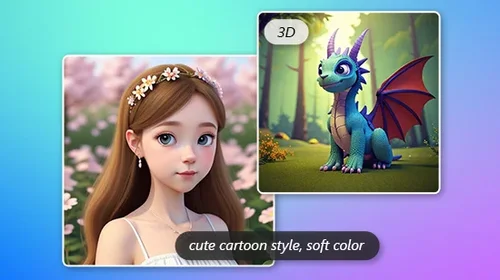
AI Object Remover
Remove Unwanted Objects from Photos Online
Use MyEdit's AI Object Remover to delete people, erase text, or remove unwanted objects from any photo in seconds. Just upload your photo and brush over what you want gone, no software needed.
 By continuing, you agree to our Terms of Use and Privacy Policy.
What Can You Do With AI Object Remover?
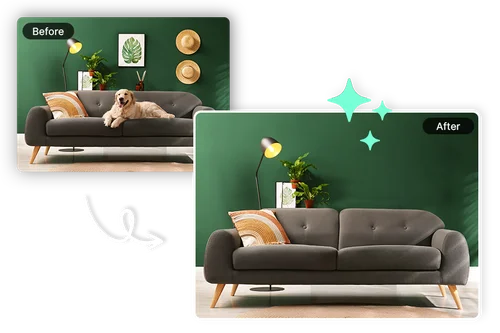
Erase Unwanted Objects from Photos With AI Inpainting Technology
Use MyEdit's AI Object Remover to clean up distracting objects, defects, or clutter from any photo. Our AI inpainting analyzes the surrounding pixels and rebuilds the background to match lighting and texture, so the edit blends in naturally. You can also remove blemishes, wrinkles, or skin marks for portrait retouching.
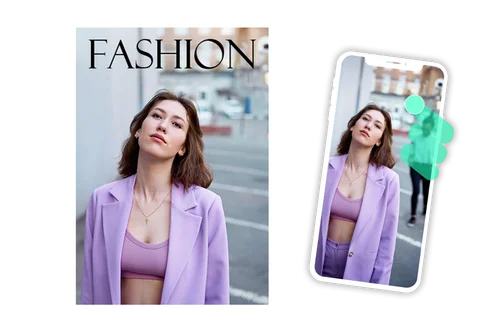
Remove People From Photos Online
Your vacation photo looks great, except for the strangers in the background. Brush over photobombers, crowds, or clutter with MyEdit's AI Object Remover, and it removes them while rebuilding the background around where they stood.
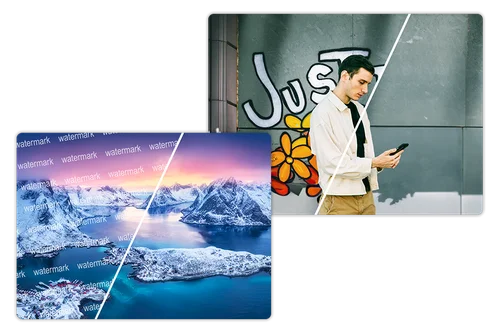
Remove Text and Watermarks from Images Instantly With AI Text Remover
Use MyEdit’s AI Object Remover to erase text overlays, timestamps, or watermarks from screenshots and photos. Brush over the area you want gone, and the AI fills it in to match the surrounding background.
How to Remove Unwanted Objects from Photos?
 Step 1
Upload Photo that You Want to Remove Text or Objects From
Select and import an image with unwanted text or objects that you want to remove.
Step 2Select the Object, People, or Text to Remove
Use the brush, pan, or zoom tools to select the unwanted text or object, then click Remove. The unwanted objects will be removed automatically. You can also use the eraser tool to make final adjustments.
Step 3Preview and Download Cleaned-Up Photo
Download your perfectly cleaned-up photo, with unwanted objects, people, or text removed.
Why Use AI Object Removal to Remove Text, Objects or People?

Easy-to-Use Object Remover
Upload your photo, then use the brush tool to paint over any text, objects, or people you want gone. Export the cleaned-up image when you're done.

Remove Text, People, or Objects in Your Browser
No downloads or software needed. Brush over what you want removed, and MyEdit handles the rest right in your browser.

Precision Editing to Remove Blemish From Photo
Use the brush and eraser tools to refine every detail. Zoom and pan for pinpoint control when removing blemishes, wrinkles, or small distractions.

Remove People Without Losing Image Quality
MyEdit rebuilds the background where a person was standing, matching the resolution and detail of the rest of the photo.

Remove Text From Images in Seconds
Skip the manual retouching. Clean up memes, screenshots, or product photos by brushing over the text you want to erase.

Remove Watermarks or Objects Before Reusing Content
Clean up images before repurposing them for a new post, listing, or project. Preview your edit instantly, then subscribe to download it watermark-free.
AI Object Remover FAQ
What is object removal?


Object removal allows you to take out unwanted objects or people from your photos with powerful AI algorithms.
Will removing text affect the quality of the image?
No, removing text or objects from photos will not affect the image quality.
What image formats are supported for Object Removal?
Supported image formats include JPG, PNG, GIF, WebP, BMP.
Is it safe to use MyEdit to remove unwanted objects from a photo?
Yes, it's safe to use our tools for your image editing. The platform uses advanced security measures to safeguard users' data.
How to remove a watermark from a photo?
Removing watermarks from an image is easy:
1. Simply upload your photo
2. Paint over the watermark you want to remove with the brush tool
3. Click Remove
How to remove blemishes or wrinkles from a photo?
Removing blemishes or wrinkles is easy and fast with our Object Removal tool:
1. Simply upload your photo
2. Paint over blemishes or wrinkles you want to remove with the brush tool
3. Click Remove
How to remove text from an image?
Follow the steps below to remove text from images:
1. Simply upload your photo
2. Paint over the text you want to remove with the brush tool
3. Click Remove
How to remove people from a photo?
Besides removing objects you can also erase people from your photos:
1. Simply upload your photo
2. Paint over the person or crowd you want to remove with the brush tool
3. Click Remove
For more precision edits you can adjust the brush size to accurately paint over the people you want to remove.
How can I clean up my photos?
Use our online tool to clean up your pictures quickly. Remove unwanted people/objects, enhance photos with AI, remove distracting backgrounds, and more in one easy-to-use hub.
Can I use the results for commercial purposes?
Yes, commercial use is permitted for all generated images. You can confidently use them across your marketing campaigns, digital advertising, and business projects. For organizations requiring specialized features, discover how our MyEdit Business can support your enterprise.