AI Photo Slideshow
Turn Your Photos Into a Music-Synced Slideshow With AI
No templates to browse. Just upload your photos, choose a mood and tempo, and let AI create a beat-synced video in your preferred size and length, with text automatically generated from what’s in your photos.
Create an AI Photo Slideshow With Music for Every Story
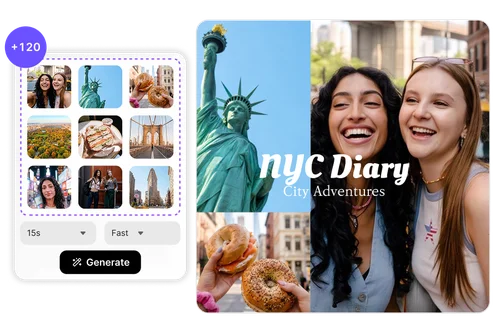
Bring Your Travel Photo Dump to Life in 15 Seconds
You came home with 120 photos from that trip, but only four made it to your feed. Give the rest a chance to tell the story, too. Upload your best shots, choose 9:16 and 15 seconds, and set the tempo to Fast. AI syncs each photo change to the beat of the music, so your trip comes together in seconds. AI Text highlights the places you visited, the landmarks you captured, and the feeling of each moment.
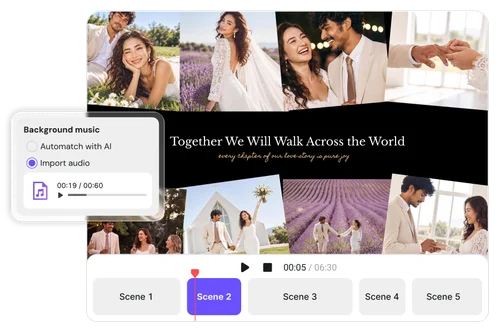
Relive Your Wedding Day With a Slow, Emotional Story
Your wedding day gave you hundreds of photos, but scrolling through an album doesn’t tell the whole story. Upload your favorites, choose 60 or 90 seconds, then add the song that holds a special place in your story. AI turns the photos into a music-synced video, while AI Text brings the joy, love, and special moments of your big day into words.
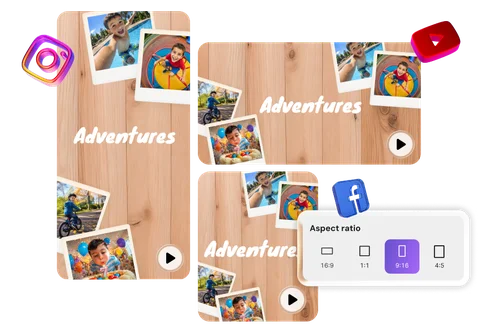
Give a Year of Memories Their Own Video Recap
A year of photos can easily end up buried in your camera roll. Bring your favorite moments together into one video, from birthday parties and family gatherings to everyday memories. Pick a mood and tempo that match your year, then choose the size that fits where you want to share it, and create a recap for friends and family.
How to Make a Photo Slideshow With Music Online with MyEdit
 Step 1
Upload Your Photos
Drag your photos onto the upload area or click Import Photos. JPG, PNG and WEBP all work, up to 120 images, and you can drag any thumbnail to change the scene order.
Step 2Choose Your Mood, Ratio and Length
Pick a mood, an aspect ratio (16:9, 1:1, 9:16 or 4:5) and a length from 15 to 90 seconds. Leave music on auto-match with AI or upload your own MP3.
Step 3Generate, Tweak and Export
Click Generate Video and watch the result play in the preview. Adjust any scene's text or photo in the right panel, then hit Export Video to download it.
Why Choose MyEdit's AI Photo Slideshow Maker

No Templates to Pick, No Placeholders to Swap
Upload your photos first, choose a mood, and let AI build the video around your actual photos. Instead of filling someone else’s template, each slideshow is adapted to your chosen tempo, aspect ratio, and length, so the same photos can look different every time.

Scene Changes That Land on the Beat
Stop spending time lining up photo changes with music by hand. Turn on AI automatch to place scene cuts on the beat for you. Choose Slow, Normal, or Fast, and the rhythm, including how many photos the video uses, adjusts to match.

AI Text From Your Actual Photos
Turn on Add AI Text to generate captions based on what’s actually in your photos. A beach trip and a birthday celebration get different text instead of generic captions. You can also turn text off for any individual scene whenever you want.

Made for Every Social Format
Choose your aspect ratio before generation to keep your framing intact. Pick 9:16 for Reels, Stories, and TikTok, 4:5 or 1:1 for social feeds, or 16:9 for YouTube. AI adapts the layout and text placement to your chosen format.

Edit Every Scene After Generation
AI generation doesn’t have to be final. Select any scene to rewrite its caption, adjust the font, size, color, spacing, or position, or add a text background. You can also scale, reposition, or replace the photo in that scene.

Create in Your Browser, Stay Protected
Create your photo slideshow right in your browser with no software or plugin to install. Get started without a credit card, while your uploads are protected with HTTPS/TLS encryption and automatically removed from our servers after processing.
More Ways to Create with MyEdit
AI Photo Slideshow FAQ
What is an AI photo slideshow?


An AI photo slideshow is a video built automatically from a set of still photos, with the pacing, transitions, on-screen text and background music decided by AI rather than assembled by hand. You supply the images and a few choices about mood, shape and length, and the tool works out how long each photo holds, where the scene changes fall against the music, and what the captions say. It is the difference between arranging a timeline yourself and describing the feeling you want.
Is MyEdit AI Photo Slideshow free to use?
AI Photo Slideshow runs on credits, and the Generate Video button always shows what a video will cost before you click, calculated from how many photos you uploaded and which duration you picked. If you are on a free account and have no credits available, a 15-second generation is applied at no cost instead, and that video is fully downloadable rather than a locked preview. It works once per account, so choose the photos you actually care about.
Which photo and audio file formats are supported?
For images you can upload JPG, PNG and WEBP files, up to 120 images in one video, with each file up to 10 MB and an aspect ratio between 1:2.5 and 2.5:1. Anything outside those limits is skipped during upload and you are told which files did not make it, so a single odd file will not block the rest of the batch. If you bring your own soundtrack it needs to be an MP3, at least 15 seconds and no longer than 10 minutes, up to 900 MB.
How many photos should I upload?
MyEdit recommends the minimum number of photos based on the duration and tempo you select, and updates the recommendation whenever you change either one. As a guide, we recommend 3 to 5 photos for a 15-second video, 6 to 8 for 30 seconds, 11 to 15 for 60 seconds, and 15 to 23 for 90 seconds, with the higher number applying to Fast tempo. These are only guidelines, though: you can upload fewer or many more photos and still generate your video.
Can I use my own music instead of AI-matched music?
Yes. Under Background Music, choose Import audio and upload an MP3, or simply drop a file onto the upload field and the selection switches over for you. The field becomes a small player so you can check you picked the right track. One thing worth knowing: the Slow, Normal and Fast tempo options only apply when the music is being matched by AI, because that is what allows scene changes to be placed on the beat. Switch back to Automatch with AI and your previous tempo choice returns.
What language can the AI-generated text be in?
The generated text elements can be written in English or Japanese. The default follows the language your interface is set to, so a Japanese interface produces Japanese text and every other locale falls back to English, and you can change it in the Language dropdown before generating. Prefer a video with no words at all? Switch the Add AI Text toggle off and the result is photos and music only, with the text tab hidden from the editing view.
Can I edit the video after it's generated?
Yes, and this is where most of the shaping happens. Click any scene in the preview and its contents open in the right panel, split into a Text tab and a Photo tab. Text can be rewritten and restyled: font, size, color, line height, and position on screen. Photos can be scaled, nudged into a better position inside the frame, or swapped out with Replace Image. You can also hide the AI text on one scene without regenerating anything.
What aspect ratios and video lengths can I choose?
Four aspect ratios are available: 16:9 for YouTube and desktop viewing, 9:16 for Reels, Stories and TikTok, 4:5 for a taller social post, and 1:1 for square grids. Lengths are 15, 30, 60 and 90 seconds. Both are chosen before you generate rather than cropped or trimmed afterward, which matters because the layout and text placement are composed for the shape you selected instead of being squeezed into it later.
Do I need to download an app or software?
No. The tool runs in a browser tab on your desktop or laptop, so there is nothing to install, no plugin and no updates to chase, and you can begin without entering payment details. Note that this feature is currently built for computer browsers rather than phones. Finished videos are saved to your cloud library under a Photo Slideshow Video folder in the Video tab, and exporting saves a copy there automatically alongside the file you download.