Video Auto Reframe
Auto Reframe Your Video for Every Platform
Claim free credits and let AI automatically reframe your video to 16:9, 9:16, 1:1, and more, then fine-tune the crop yourself in real time. No watermark.
What Video Auto Reframe Can Do For You?
Turn Landscape Footage Into Vertical Clips for TikTok and Reels
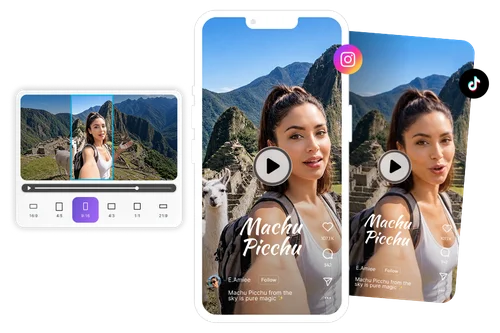
Shot a video in widescreen but need it for TikTok, Instagram Reels, or YouTube Shorts? Video Auto Reframe analyzes the footage and suggests a vertical 9:16 crop based on where your subject is, then you can drag the frame yourself in real time to adjust anything the AI didn't quite get right.
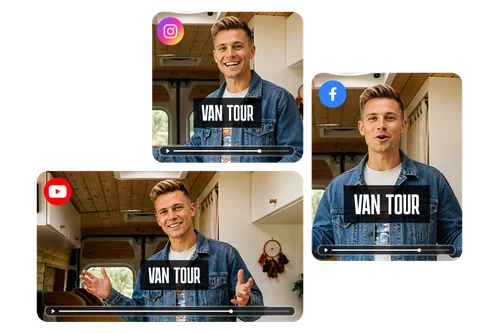
Resize One Video for Every Platform Without Re-Cropping
Stop exporting a separate cut for every channel. Upload your video once, choose from six aspect ratios including 16:9, 1:1, and 4:5, and get a platform-ready version for YouTube, Instagram, and Facebook in a fraction of the time manual editing takes.
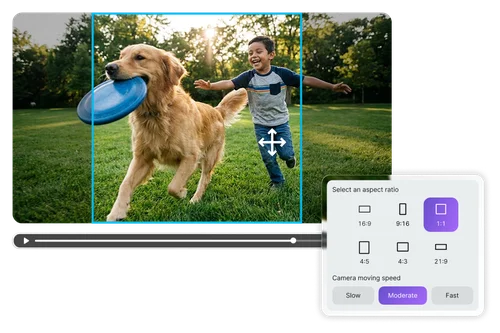
Fine-Tune the Framing Whenever You Need To
No auto-crop gets every scene right, especially with fast movement or multiple people in frame. Video Auto Reframe gives you a smart starting crop for each ratio, and you can drag the crop frame yourself in real time to adjust the focus exactly where you want it.
How to Auto Reframe a Video?
 Step 1
Upload Your Video or Choose a Sample
Add an MP4 or MOV file up to 10 minutes and 2GB, or pick a sample clip to see how the tool works.
Step 2Choose an Aspect Ratio and Let AI Analyze
Select from 16:9, 9:16, 1:1, 4:5, 4:3, or 21:9, then let AI analyze the footage and generate a suggested crop for that ratio.
Step 3Fine-Tune, Save, and Download
Drag the crop frame to adjust the focus if needed, then save your result to the cloud and download it in full quality.
Why Use Video Auto Reframe by MyEdit?

Six Aspect Ratios in One Tool
Reframe to 16:9, 9:16, 1:1, 4:5, 4:3, or 21:9 from a single upload, so you can cover every platform's requirements without switching between separate cropping tools or re-exporting from scratch each time.

Smart AI-Suggested Cropping
Instead of a fixed center-crop, the AI analyzes each video to suggest a crop based on where your subject likely is, giving you a better starting point than a plain center-crop, with manual adjustment always available for scenes it doesn't get exactly right.

Manual Fine-Tuning When You Need It
Drag the crop frame yourself at any point to override the AI's decision, with changes reflected in real time, so you always have the final say over composition.

Clean, Watermark-Free Exports
Download high-quality, watermark-free videos in a single click! Perfect for your personal social feeds, vlogs, and sharing with friends and family, giving you total creative freedom.

Fast, Browser-Based Processing
Everything runs online, with no software to install. Upload your video, pick a ratio, and get an MP4 result back in moments, ready to post directly to any platform.

Part of a Full AI Video Toolkit
Once your video is reframed, keep editing with MyEdit's Video Enhancer, Video Trimmer, and other tools in the same workspace without exporting to a separate app.
More Ways to Create with MyEdit
Video Auto Reframe FAQ
What aspect ratios does Video Auto Reframe support?


It supports six ratios: 16:9, 9:16, 1:1, 4:5, 4:3, and 21:9, covering the standard formats used by YouTube, TikTok, Instagram, and Facebook.
Will the AI cut off important parts of my video?
The AI analyzes your footage and suggests a crop based on where your subject likely is, rather than a fixed center crop, but it isn't guaranteed to be right for every scene. You can always drag the crop frame yourself in real time to fix anything it missed.
What file formats and sizes are supported?
You can upload MP4 or MOV files up to 10 minutes long and 2GB in size. Longer clips can be trimmed down using the built-in trimmer before reframing.
Is Video Auto Reframe free to use?
Free users get one free reframe on videos under 10 minutes once their credit balance is zero. Premium subscribers can use the feature as part of their plan.
Where do my reframed videos get saved?
Results are saved to an Auto Reframe folder inside My Library in the cloud, so you can find, re-download, or continue editing them later without re-uploading the original.
Does this work on all browsers?
Video Auto Reframe is not supported on Safari because the video engine it relies on isn't available there. Use Chrome, Edge, or another Chromium-based browser for the best experience.
Can I reframe more than one video at a time?
Each reframe is processed one video at a time, but while one video is analyzing you can open a new tab to start reframing another clip without waiting for the first to finish.
Is it safe to upload my media?
Yes. Your uploaded media is processed securely and used only to generate your video.