
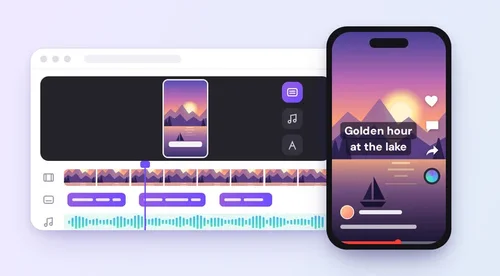
Key Takeaway
- Open the YouTube app, tap Create, select Short, record, add sound or text, then tap Next and Upload Short.
- A video counts as a Short when it is square or vertical and 3 minutes or shorter.
- Prefer to edit first? Build the Short in an online editor such as MyEdit Free Online Video Editor, on phone or PC, then upload the file.
- Already published a long video? Remix, then Edit into a Short, cuts up to 60 seconds from it.
- MyEdit adds what the Shorts camera lacks: AI subtitles, royalty-free music, 9:16 reframing for horizontal clips, AI sound, and sharpening.
To make a YouTube Short, open the YouTube app, tap Create, select Short, record your clip, add music or text, then tap Next and Upload Short. Any video you upload that is square or vertical and no longer than 3 minutes is also treated as a Short, so you can edit on a computer and upload the finished file through YouTube Studio.
This guide covers how to make YouTube Shorts all three ways, the official rules behind them, and the limit each route has; I tested each method while writing it. If you have read that Shorts stop at 60 seconds, that rule changed in October 2024; everything below was checked against YouTube's Help Center on October 27, 2026.
What Counts as a YouTube Short?
A YouTube Short is any video that is square or vertical and up to 3 minutes long, a rule YouTube applies to uploads made on or after October 15, 2024. Before that date the cap was 60 seconds, which is why older tutorials still quote it.
| Requirement | YouTube's rule | What it means for you |
|---|---|---|
| Length | Up to 3 minutes | Anything longer is published as a regular video |
| Shape | Square or vertical | A 16:9 landscape file is not treated as a Short |
| Upload resolution | Up to 1080p | Exporting at 1080 × 1920 already hits the maximum |
| Title | Up to 100 characters | Write it on the details screen before you upload |
| Music | Most songs up to 90 seconds | Some tracks are capped at 60 or 30 seconds |
| Copyright | Claimed Shorts over 1 minute are blocked | Clear any music you added in another editor |
Which Method Should You Use?
I pick the method based on the footage I already have, because each route has a different length limit and starting point.
- Recording something quick on your phone: use the Shorts camera in the YouTube app (Method 1).
- Wanting subtitles, a timeline, royalty-free music, or a mix of vertical and horizontal clips, on phone or computer: edit online, then upload (Method 2).
- Cutting a highlight from a public video you already uploaded: use Edit into a Short (Method 3), which takes up to 60 seconds of the original.
Method 1: How to Make a YouTube Short in the YouTube App
The quickest way to make a Short is the Shorts camera inside the YouTube mobile app, which records, edits, and publishes in one place. When I just want something posted fast, this is the route I use. The steps follow YouTube's own instructions.
Step 1
Tap Create and select Short
Sign in to the YouTube app, tap the Create (+) button, and choose Short to open the Shorts camera.
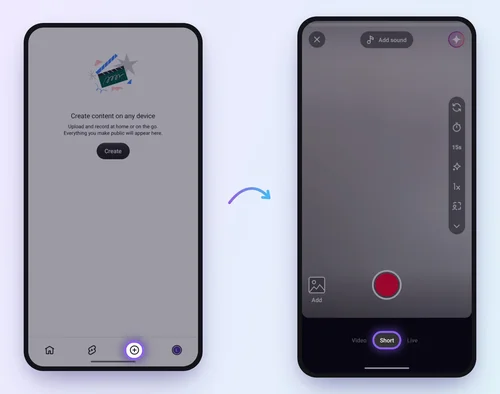
Step 2
Set the length and record
Tap the duration in the upper-right corner to change it. Hold the Capture button, or tap it once to start and again to stop; you can record several segments in a row.
Step 3
Fix mistakes as you go
Tap Undo to remove the last segment you recorded, or Redo to add it back.
Step 4
Add sound, text, and effects
Tap Done to watch your video back, then add music, text, text-to-speech, filters, or other effects.
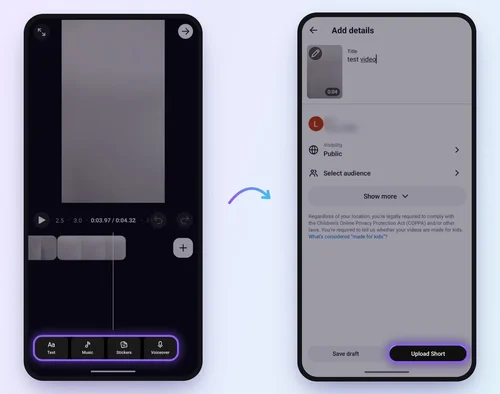
Step 5
Add a title and choose settings
Tap Next, write a title of up to 100 characters, set the visibility, and choose whether the video is made for kids. Tap Get feedback for an analysis of your hook and pacing.
Step 6
Upload or save a draft
Tap Upload Short to publish it, or Save draft to finish it later.
I found the Shorts camera best for quick edits inside the app. For subtitles generated from speech, a multi-track timeline, or footage you already filmed, Method 2 gives you more control.
Method 2: How to Make YouTube Shorts Online With MyEdit on Phone or PC
If you would rather edit before you post, build the Short in an online editor and upload the finished file; YouTube treats any square or vertical upload of 3 minutes or less as a Short. MyEdit's video tools run in your browser on a computer or phone, and they work with vertical clips straight from your camera as well as horizontal footage.
Editing first gives you things the Shorts camera doesn't: subtitles generated from speech, a multi-track timeline, and royalty-free music, which matters more once a Short runs past 1 minute and copyright claims start blocking it. Disclosure: MyEdit is our own product, and the same workflow works in any editor that exports vertical video.
Here is what Free Online Video Editor brings to a Short:
Key features
 AI subtitles generated from speech, plus SRT upload for captions you already have
- A multi-track timeline to trim, split, and arrange clips
- Built-in royalty-free music and sound effects
- Text templates, stickers, and transitions such as fades, wipes, and zooms
- Free exports with no watermark, up to 5 minutes per video
- Cloud autosave, so you can start on a computer and continue on another device
Step 1
Upload your clips to Free Online Video Editor
Open the editor in your browser and upload or drag in your clips; MP4, MOV, and other major formats are supported.
Note: If your original clip is 16:9, open Video Auto Reframe, choose 9:16, adjust the crop the AI suggests based on where your subject is, and download the vertical version. It accepts MP4 or MOV files up to 10 minutes and 2 GB.
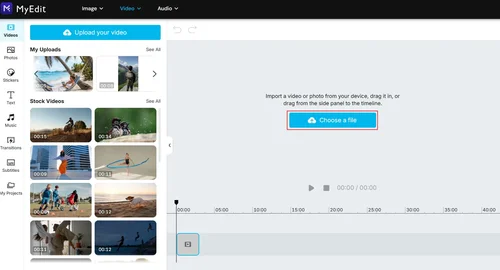
Step 2
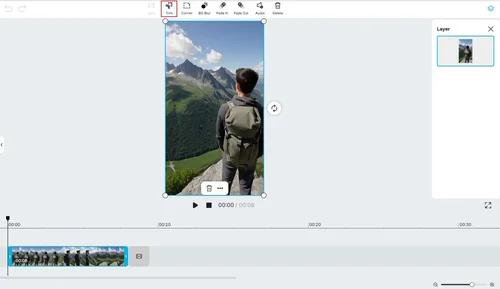
Trim and arrange to 3 minutes or less
Cut the slow parts, split or reorder clips on the timeline, and keep the total runtime at 3 minutes or less.
Step 3
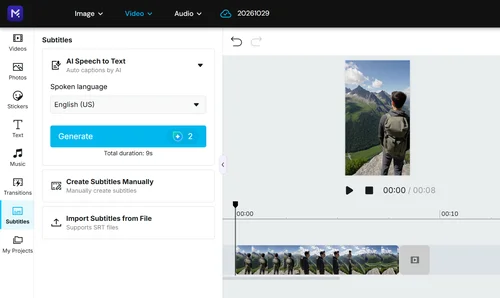
Add AI subtitles, text, and music
Generate subtitles from speech, add on-screen text or stickers, and drop in royalty-free music or sound effects.
Step 4
Export the finished video
Export in high quality. The free plan exports up to 5 minutes per video, one export per day, with no watermark.
Step 5
Upload the file to YouTube
On a computer, sign in to YouTube Studio, click Create, then Upload videos, and select the file. On a phone, upload the saved video through the YouTube app.
Step 6
Add the details and publish
Add a title, description, and audience setting, then publish your Short.
The free plan allows one export per day, so I finish all my edits before exporting; a Creator plan or higher removes that cap.
Video Auto Reframe, which you need only for horizontal clips, runs on credits (free users get one free reframe on a video under 10 minutes once their balance is zero), processes one video at a time, and doesn't run in Safari.
Method 3: How to Make a Short on YouTube From an Existing Video
If you have already published a long-form video, you can cut a Short from it without uploading anything new, and the Short links back to the original video.
Step 1
Open your video's watch page
In the YouTube app, open a public long-form video that you uploaded yourself.
Step 2
Tap Remix, then Edit into a Short
This opens the Shorts editor with your video already loaded.
Step 3
Select up to 60 seconds
Choose the section you want to keep, then tap Next. Tap Layout to try a different arrangement.
Step 4
Add text or filters and upload
Add creative touches such as text or filters, fill in the details, and upload the Short.
You can select at most 60 seconds of the original, and music from YouTube's Audio Library can't be added to these Shorts. Private videos, unlisted videos, and videos with third-party copyright claims don't show the option. For a cut longer than 60 seconds, edit your original file with Method 2.
If Edit into a Short is missing on one of your public videos, open YouTube Studio, go to Content, open the video, click Show more, and check Allow people to sample this content under Shorts remixing.
More MyEdit Tools That Improve a Short
Two more MyEdit tools fix common problems in phone and camera footage before you upload: missing or poor sound, and soft or dim picture. Both run in the browser, so they slot in before or after the editor.
Add matching sound with Video Sound Generator
Video Sound Generator analyzes your footage and generates background sound that fits the scene, such as nature, city, or ambient noise. It suits silent clips, stock footage, and AI-generated video, and MyEdit states the generated audio is original and can be used commercially.
Limit:It accepts MP4 or MOV files up to 200 MB and runs on credits, including the free daily credits.
Sharpen low-quality footage with AI Video Enhancer
AI Video Enhancer sharpens soft footage, corrects lighting, and reduces noise in one pass. YouTube Help lists 1080p as the maximum upload resolution for Shorts, so the 4K upscale adds nothing to a Short. I save the enhancer for clips below 1080p or footage shot in dim light.
Limit:It takes MP4 or MOV clips up to 3 minutes and 1.8 GB, and the credit cost rises with clip length and the number of enhancements you turn on.
Checks Before You Publish a Short
Before I publish, I check the length, framing, sound, and title, because these decide whether YouTube treats the upload as a Short and whether it stays up.
- Length: count the final runtime, not the raw footage; anything over 3 minutes becomes a regular video.
- Framing: the Shorts player lays the title, channel name, and buttons over the bottom and right edge, so I keep faces and on-screen text near the center.
- Music: in a 3-minute Short, most Shorts Audio Library songs can run up to 90 seconds, while some are capped at 60 or 30 seconds.
- Copyright: a Short longer than 1 minute with an active copyright claim is blocked, so clear any track you added in another editor.
- Hashtags: YouTube's help pages define Shorts by length and shape only and don't list a #Shorts hashtag as a requirement.
- Feedback: the Get feedback button on the details screen analyzes your hook and pacing before you post.
Sources and Date Checked
- YouTube Help: Get started creating YouTube Shorts (recording steps, 1080p maximum, 100-character titles, monetization threshold)
- YouTube Help: Understand three-minute YouTube Shorts (3-minute rule, music limits, copyright blocking)
- YouTube Help: Upload YouTube Shorts and Create YouTube Shorts from your videos (YouTube Studio upload, 60-second Edit into a Short limit)
- MyEdit tool pages for Free Online Video Editor, Video Auto Reframe, Video Sound Generator, and AI Video Enhancer (formats, size and length limits, browser support, free allowances)
- I tested each method myself and rechecked every rule above against YouTube's Help Center on October 27, 2026.
FAQs
1. How long can a YouTube Short be?


A Short can be up to 3 minutes long if it is square or vertical. Edit into a Short, which cuts a Short from your own long-form video, is the exception: it lets you select up to 60 seconds.
2. Do YouTube Shorts have to be vertical?
They have to be vertical or square. A 16:9 landscape upload isn't treated as a Short, so crop horizontal footage to 9:16 first, in your editor or with a tool such as MyEdit Video Auto Reframe.
3. Can you make YouTube Shorts on a computer?
Yes. The Shorts camera is in the YouTube mobile app, but on a computer you can edit in a browser-based editor and upload a finished square or vertical file of up to 3 minutes in YouTube Studio by clicking Create, then Upload videos.
4. How do I add captions to a YouTube Short?
In the Shorts editor you can add text by hand. For subtitles generated from speech, edit the clip first in a tool with AI captions, such as MyEdit Free Online Video Editor, then upload the captioned file.
5. Do you need #Shorts in the title for a video to count as a Short?
No. YouTube's help pages classify Shorts by length and aspect ratio and don't list the hashtag as a requirement, though you can still add it as a label for viewers.
6. Can you make money from YouTube Shorts?
Yes. To join the YouTube Partner Program through Shorts, your channel needs 1,000 subscribers and 10 million qualified Shorts views in the last 90 days, according to YouTube Help.
7. Why don't I see Edit into a Short on my video?
The option only appears on public long-form videos you uploaded, and not on private, unlisted, or copyright-claimed ones. The video must also allow sampling, which you turn on in YouTube Studio under Shorts remixing.