Image to Video
Turn Any Photo into a Video With AI
Upload a photo, add a prompt, and choose an AI model to generate motion, sound, and dialogue. New users get their first video free, with no watermark and up to 1080p output.
Why Use MyEdit's AI Image to Video Generator
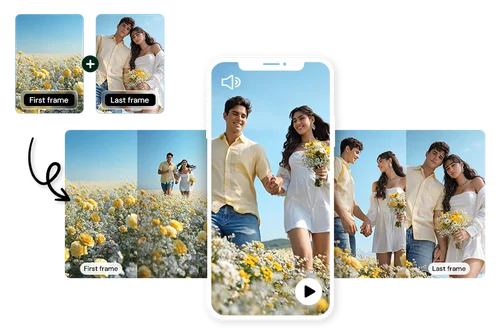
Control Exactly How Your Video Starts and Ends
Set the first and last frame of your clip and let AI fill in the motion between them. This gives you control over how the action begins and ends, so transitions come out smooth and predictable without manual editing.
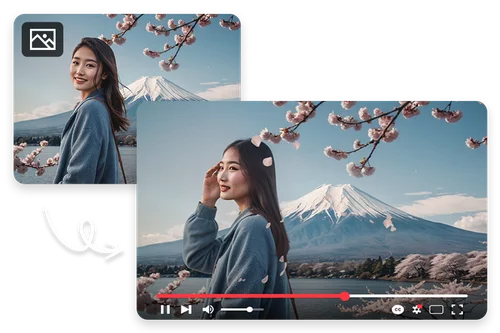
Describe Motion, Sound, and Dialogue in One Prompt
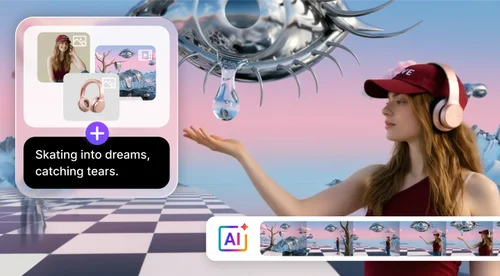
Write what you want to see and hear. With audio-capable models like Veo and Kling, one prompt generates synchronized sound alongside the motion, so you get a complete clip without a separate audio step.
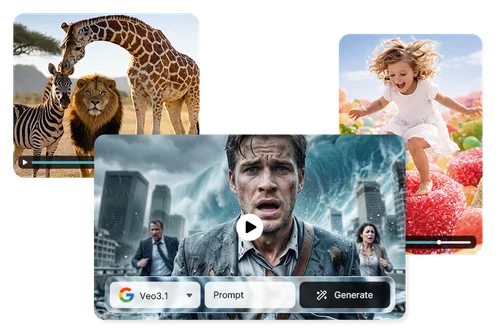
Pick the Right AI Model for Your Project
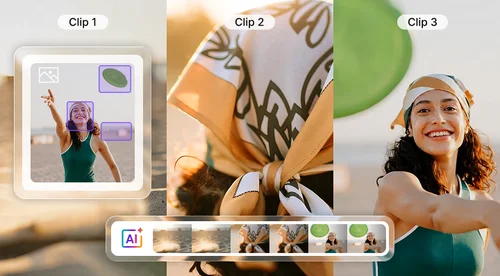
Choose from the latest AI video models in one place. Some handle long, action-heavy scenes; others are better at expressive acting, talking photos, or keeping a face consistent. Pick the one that fits your shot. New models are added as they launch.
How to Convert an Image to Video
 Step 1
Upload Your Image
Click Import a Photo to choose an image from your device, then crop it to the aspect ratio you want.
Step 2Pick a Model and Enter Your Prompt
Pick a model and type your prompt. The AI creates the motion, and adds audio if the model supports it.
Step 3Preview and Download Your Video
When generation finishes, preview the result in MyEdit and decide whether to download. Save it to your device at up to 1080p with no watermark.
Turn Any Photo into a Video for Free

Describe Motion, Sound, and Camera in Plain Text
Describe what should happen, how the camera moves, and what you want to hear. Something like "Slow push-in as she turns and laughs, waves in the background" gives the AI plenty to work with.

AI-Generated Images for Stunning Videos
No photo to animate? Create one with AI Image Generator or AI Photoshoot, then send it straight to the image to video tool for a smooth result.

Built-in Sound and Dialogue
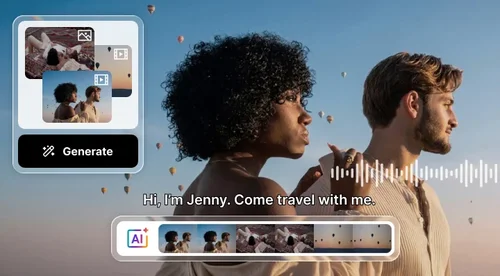
Turn on audio to generate sound effects and music that match the motion, or pick a lip-sync model to make the person in your photo talk. No need to edit audio separately.

Top AI Video Models in One Place
Switch between leading AI video models for anything from long cinematic scenes to quick social clips. No juggling separate apps and accounts.

First and Last Frame Control
Set the opening and closing frame to direct your clip, and AI fills the motion between them for clean, professional transitions.

Motion Path Control
Draw a path on your image to guide the camera through a scene, move a single object, or walk a character along a route. AI follows your path while keeping the rest of the scene consistent.
Which Featured AI Model Fits Your Shot?
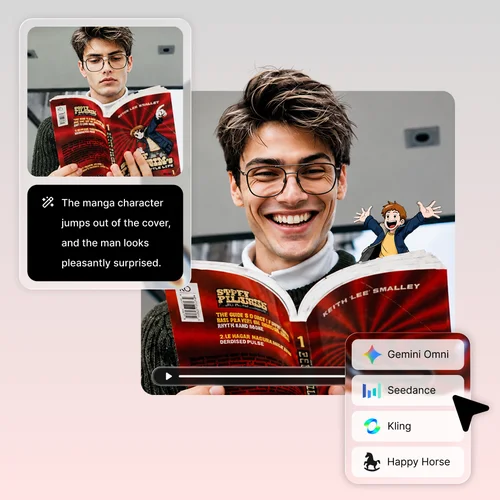
Need a full scene, not just a quick moment? Kling 4.0 turns your photo into a clip up to 30 seconds long and keeps fast action and big camera moves steady from start to finish. Set a last frame to control how it ends, and turn on audio for synced stereo sound.
Worried a detailed photo will warp mid-motion, a hand bending wrong, or fabric folding oddly? Seedance 2.5 prioritizes tight consistency for realistic motion, giving you precise creative control over your reference media.
Need characters that still look like themselves mid-motion? Wan 3.0 keeps faces and body details consistent across the clip, so a person stays recognizable even through complex movement. Good for portrait animation and character-driven clips.
Want the person in your photo to act, not just move? Vidu Q4 is built for emotional performance: natural expressions, cinematic lighting, and smooth camera moves. Upload one photo, describe the mood, and turn on audio to add sound effects and music that match the scene.
Need to keep revising the same clip without starting from zero? Tag it with @ and Gemini Omni 1.1 Flash reshapes the result each time you ask in plain language, mixing in text, image, audio, or video as reference.
If the person in your photo needs to speak, use this one. Upload the photo, pick a duration, and it adds native audio with multilingual lip-sync. No last frame or mode settings to set first.
More Ways to Create with MyEdit
AI Image to Video Generator FAQ
What is an AI image to video generator?


An AI image to video generator turns a still image into a short video. You upload a photo, add a text prompt, and an AI model generates motion, and sound if the model supports it. MyEdit runs fully online with no software to install.
How does MyEdit's AI image to video generator work?
Upload a photo, describe the motion you want, and pick an AI model. If the model supports it, you can also set a last frame or turn on audio. Then click "Generate." For ready-made animations, try the Image to Video Template tool instead.
Is the AI image to video generator free to use?
New users get one free video, up to 5 seconds long, with no watermark. After that, each video you generate uses Credits. You also get some free Credits every day. Since AI video takes a lot of computing power, a subscription works best if you plan to make videos often.
Which AI models can I use for image to video?
You can choose from leading models including Veo, Kling, Vidu, PixVerse, Wan, Seedance, Happy Horse and more, with multiple versions available for some. The list updates as new models are added.
Can I add sound or dialogue to my AI video?
Yes, with audio-capable models. Pick a model like Veo, Kling, Seedance, or Vidu for synchronized sound, or Happy Horse for multilingual lip-sync. Motion-only models do not add audio.
What video resolution can I export?
Most models export at up to 1080p HD, with no watermark on your downloads. The exact maximum resolution can vary by model.
Can I use AI-generated videos for business purposes?
Yes. Videos you generate can be used for commercial projects such as ads and social media, and your downloads have no watermark.
How do I create a video from an image?
Turn your photos into videos in three steps with our free AI Image to Video Generator:
- Step 1: Upload your photo.
- Step 2: Pick a model and describe the motion you want.
- Step 3: Preview and download your video.
What is the best AI Image to Video Generator to make video from photo?
The best one depends on the look you want. MyEdit lets you switch between leading models like Veo, Kling, and Vidu in one place, set the first and last frame for controlled transitions, and add synchronized sound or lip-synced dialogue. It runs fully online, exports up to 1080p HD with no watermark, so you can match the model to your project and download a finished video in one step.
Is the Image to Video tool available as a mobile app?
How can I control how my video starts, moves, and ends?
Upload your image and set a first and last frame to control where the clip starts and ends, or turn on Motion Path and draw the route you want the camera, an object, or a character to follow. These are two separate options. AI generates the video following your direction, so the result matches what you planned.
What can I create with Motion Path?
Motion Path is available on supported models, currently Seedance 2.0. The editor shows the toggle when the selected model supports it. You can guide a cinematic camera fly-through across a large scene, move a single object while the background stays still, or walk a character along a chosen route while the environment stays consistent.