
Key Takeaway
- Muffled audio has lost its high frequencies, the part of your voice that makes words crisp.
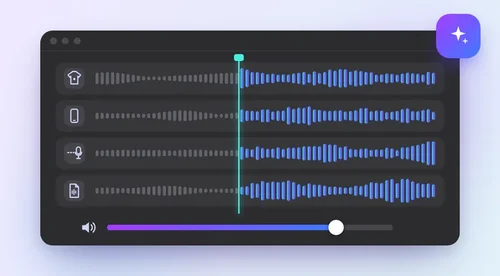
- The usual suspects: a mic under clothing, a phone in a pocket, a speaker too far from the mic or a low-bitrate file.
- Already recorded? An AI speech enhancer can rebuild much of the lost clarity; EQ can only boost what's left.
- In my test, MyEdit's Free AI Speech Enhancer fixed the two milder cases, and the two hardest came out clearer, with a slight lisp.
- Noise tools like MyEdit's Voice Cleaner remove noise, but they won't bring back missing highs.
You hit play, and your voice sounds like it was recorded through a pillow. That dull, muffled sound means the recording has lost its high frequencies, so consonants like s, t and f blur together. The good news: if you already have the file, an AI speech enhancer can rebuild much of that clarity, and a gentle EQ boost can help with mild cases.
To keep it from happening again, you'll want to fix the cause, which is usually a covered mic, too much distance or a low-quality file. I tested every fix in this guide on one AI-generated voice, muffled four different ways, so you'll know what to expect and where each tool stops. Tested on October 21, 2026.
Why does my audio sound muffled?
Your audio sounds muffled when something strips out the high frequencies before or after you record. Fabric, distance and heavy compression block high frequencies much more than low ones, so your voice keeps its body but loses its detail. Here are the four causes I tested, and you'll probably recognize at least one:
- Mic under clothing. If you hide a clip-on or headset mic under a shirt or jacket, it hears your voice through fabric.
- Phone in a pocket. Recording from a pocket, a bag or a case that covers the mic muffles even more of the top end.
- Too far from the mic. The farther away you are, the quieter your voice gets and the more the room's echo blurs it.
- Low-bitrate file. Heavy compression, such as a very small MP3 or a weak call connection, throws away high frequencies to save data.
A quick check before you fix anything: if everything you play sounds muffled, even songs and videos you know are clear, the problem is probably your playback, not your recording. Try your headphones, Bluetooth connection or sound settings, or play the file on a second device to tell the two apart.
How to fix muffled audio online with MyEdit
The quickest way to rescue a muffled file is an AI speech enhancer, because it rebuilds your voice instead of only turning up certain frequencies. MyEdit is our own product, and you can follow the same steps in other AI speech enhancers. The Free AI Speech Enhancer runs in your browser on a phone, tablet or computer, and it accepts common audio formats such as MP3, WAV and M4A, up to 600 MB and 60 minutes per file.
Step 1
Upload your muffled audio
Open the Free AI Speech Enhancer and upload your file. Only need part of a long recording? Trim it first in MyEdit's audio editor.
Step 2
Let the AI enhance it
There's nothing to set up: enhancement starts as soon as your file loads. The AI removes background noise, hiss, hum and echo and brings your voice forward.
Step 3
Adjust Speech Strength
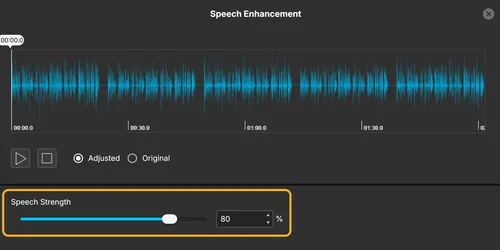
Use the Speech Strength slider to turn the effect up or down. The default (80% when I tested) worked for the milder cases; for a distant voice, I got a better result at 100%.
Step 4
Preview and download
Switch between Adjusted and Original to compare the two before you download. You can preview without an account; downloading needs a sign-in, and free accounts get one download per day.
What the fix can and can't do: my test results
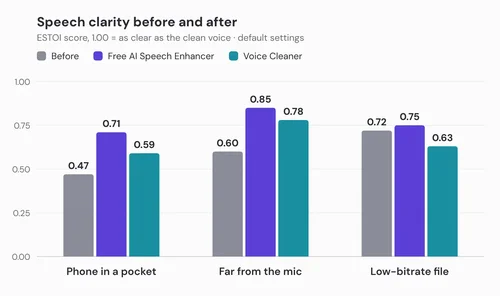
Here's the short version: the Speech Enhancer fixed muffled audio from a mic under clothing and from a speaker far from the mic, and the two hardest cases came out clearer, with a slight lisp. I ran the same five clips through both MyEdit voice tools at their default settings and listened to each result next to the muffled original. To back up my ears with a number, I also measured clarity with ESTOI, a standard speech-intelligibility score where 1.00 means as clear as the clean voice.
| Muffled clip (score before) | Free AI Speech Enhancer | Voice Cleaner |
|---|---|---|
| Mic under clothing (1.00, but dull) | Fixed: the highs came back (0.96) | Unchanged, still dull (1.00) |
| Phone in a pocket (0.47) | Clearer, with a slight lisp (0.71) | Still dull (0.59) |
| Far from the mic (0.60) | Fixed (0.85) | Quieter (0.78) |
| Low-bitrate file (0.72) | Clearer, with a slight lisp (0.75) | Score down (0.63) |
| Clean voice, as a control (1.00) | No problem heard (0.96) | Unchanged (1.00) |
Where the Speech Enhancer did the job
If your mic was under your clothes, you're in luck: that's mostly a tone problem, so the words stay easy to understand even though the voice sounds dull (which is why its score was already 1.00). The Speech Enhancer brought the highs back, and the result sounded like the clean recording; the 4 to 8 kHz band, where s and f sounds live, went from 11 dB below the clean voice to just 4 dB below. If you were far from the mic, the default setting raised the clarity score from 0.60 to 0.85, and at 100% strength the voice sounded almost like the original.
Where it reached its limit
A phone in a pocket and a low-bitrate file are the toughest cases, because they lose the most detail. The Speech Enhancer made both easier to follow, but it added a slight lisp to s sounds, and turning it up to 100% made the lisp on the pocket clip stronger. If you hear that lisp, try a few strengths in the free preview and keep the one that sounds most natural to you, even if it's a little duller.
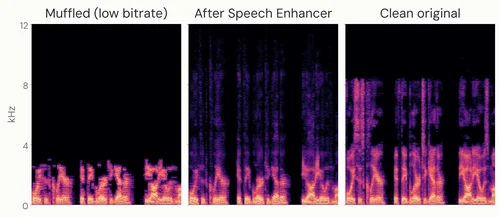
The spectrogram below shows what's going on. The low-bitrate file had almost nothing above 3 kHz, and the Speech Enhancer filled that range back in (from 66 dB below the clean voice to 22 dB below in the 4 to 8 kHz band), just not in quite the same pattern as the original voice.
Why Voice Cleaner didn't fix it
Voice Cleaner is built to pull your voice out of noise, not to rebuild missing frequencies, so don't expect it to fix a dull recording. It left the clean voice untouched, which is exactly what you want from a noise tool, but it didn't bring back the highs in any muffled clip, and on the phone-in-a-pocket clip it cut the remaining highs even further. Raising its compensation to 70% didn't make a difference I could hear.
Free AI Speech Enhancer at a Glance
Pros

 Rebuilt the missing highs on the two milder muffled clips
- Nothing to set up: it starts on upload, with one strength slider
- You can preview without an account, in the browser on a phone or computer
Cons

 Added a slight lisp on the two most damaged clips
- Free accounts get one download per day
- It rebuilds the voice, so even clean audio changes slightly (0.96 in my test)
Can EQ fix muffled audio?
EQ can help if your audio is only mildly muffled, but it can only boost frequencies that are still in the file. A common starting point from an r/editors thread is a gentle high-shelf boost of 4 to 6 dB from about 2.5 kHz; preview the change before you apply it, and stop as soon as hiss creeps in.
Here's the catch: boosting the top end also boosts hiss, and if fabric, distance or compression has already removed the highs, there's little left to boost. An AI enhancer rebuilds the voice instead of amplifying what's there, which is also why it can add small artifacts like the lisp I heard.
Limit: EQ takes an audio editor and some trial and error, and it can't bring back detail that's gone.
How to stop audio from sounding muffled next time
Fixing it later works, but nothing beats a clear recording in the first place, because no tool can fully restore lost detail. Here's what to change for each cause:
- Mic under clothing: clip the mic on top of your clothes, close to your mouth, with nothing rubbing against it.
- Phone recording: keep your phone out of pockets and bags, and make sure the case doesn't cover the mic openings.
- Distance: move the mic closer to whoever is speaking; a smaller room with soft furnishings also cuts echo.
- Low bitrate: record and export at a higher quality, such as WAV or 320 kbps MP3, and keep your original before you compress a copy to share.
Filming a quick vertical clip on your phone? The same mic tips apply, and our guide on how to make a YouTube Short walks you through three ways to turn it into a Short on your phone or computer.
When to use Voice Cleaner or Background Noise Remover instead
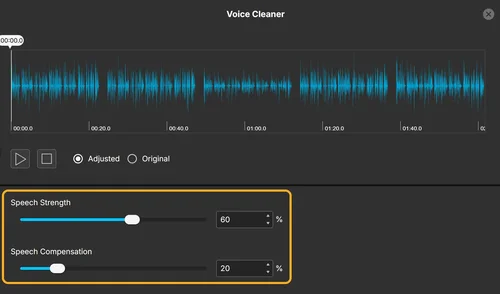
Reach for a noise tool when your voice is clear but buried under other sounds, rather than dull. Voice Cleaner brings a speaking voice forward with two sliders, Speech Strength and Speech Compensation, and accepts MP3, WAV, FLAC and M4A files under 900 MB and 90 minutes. Background Noise Remover targets steady sounds such as fan hum, air conditioning, wind, static and hiss, according to its page; I didn't test it on muffled audio.
Limit: neither tool brings back missing highs, so if your speech sounds dull and muffled, start with the Speech Enhancer.
Test details and sources
- Test audio: one voice made with MyEdit's Text to Speech, muffled four ways in code (mic under clothing, phone in a pocket, far from the mic, low bitrate), plus the clean voice as a control. No real recordings were used, and real files can behave differently.
- Tools and settings: Free AI Speech Enhancer at its default 80% and at 100%; Voice Cleaner at its default 60% Speech Strength with 20% Speech Compensation, and with compensation at 70%; MyEdit Web.
- Criteria: each result compared by ear with the muffled clip, plus ESTOI clarity scores against the clean voice.
- Tested on October 21, 2026; scores re-checked from the original files and tool pages verified on October 27, 2026.
- EQ starting point: r/editors.
- MyEdit is our own product. Tested and written by Sergio Palma.
FAQs
1. How do you get rid of muffled sound in a recording?


Run your file through an AI speech enhancer, which rebuilds the high frequencies that make speech crisp, then compare the result with the original. For mild cases, a gentle EQ boost in the upper range can also help. And if every file you play sounds muffled, check your headphones or speakers first.
2. How do you fix audio that sounds like it's underwater?
That watery sound often points to heavy compression, such as a low-bitrate file or a weak call connection. An AI speech enhancer can make it clearer, though in my low-bitrate test the result kept a slight lisp, so if you still have a higher-quality original, start from that.
3. Can I fix muffled audio for free?
Yes, within limits. MyEdit's Free AI Speech Enhancer lets you upload, enhance and preview without an account; downloading needs a sign-in, and free accounts get one download per day. A free audio editor's equalizer can help too, but it can only boost frequencies that are still in your file.
4. Why does my phone recording sound muffled?
Usually something is covering the microphone: a pocket, a bag, a tight case or even your fingers. Next time, keep the mic openings clear. For a recording you already have, an AI speech enhancer helped in my phone-in-a-pocket test, though the result kept a slight lisp.
5. How do you clean up fuzzy audio?
Fuzzy audio usually means noise, hiss or static rather than missing highs, so start with a noise tool such as Background Noise Remover or Voice Cleaner. If your voice still sounds dull after cleaning, run it through a speech enhancer.
6. Does a speech enhancer change audio that isn't muffled?
A little. In my test, the Speech Enhancer rebuilt the clean control clip too, and its clarity score moved from 1.00 to 0.96, though I couldn't hear a difference. If your audio already sounds clear, you can skip it.