
Key Takeaway
- LinkedIn recommends a 1584 × 396-pixel cover image, a 4:1 shape, saved as a JPG or PNG under 8 MB.
- Most banners show a person or a team, and a regular 16:9 team photo doesn't fit: LinkedIn's crop keeps only a strip, and your profile photo then covers whoever stands on the left.
- MyEdit's Chat Photo Editor widens a portrait or team photo into a banner from one text prompt, and MyEdit's Image Cropper trims it to exactly 4:1 with its LinkedIn Cover preset.
- In our test with three photos of people, MyEdit's Chat Photo Editor kept every person recognizable in 6 of 6 results, but it redraws the faces slightly, so check each one at 100% before you upload.
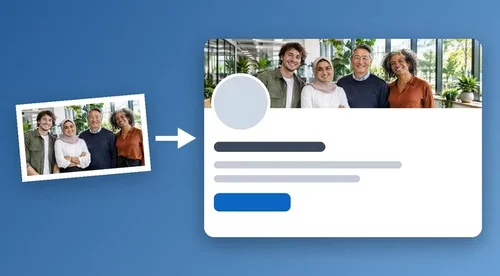
To make a LinkedIn banner that fits, use an image that's 1584 × 396 pixels (a 4:1 shape), keep every face out of the lower-left corner where your profile photo sits, and upload it from the cover image settings on your profile. Most banners show a person or a team, and a normal 16:9 team photo is too tall for that shape: either keep a strip of it in LinkedIn, or widen it into a full 4:1 banner first so everyone fits and the profile photo covers background instead of a colleague.
Below you'll find LinkedIn's own method, a MyEdit method that turns a portrait or team photo into a banner, and what happened to the faces when we tested it on three photos of people.
What LinkedIn needs from your banner
A LinkedIn banner needs the right shape, a supported file type and a small enough file, and it has to work around your profile photo. Here are the rules from LinkedIn Help, verified on November 13, 2026, and what each one means for you. The last row comes from our own measurement, because LinkedIn doesn't publish where the profile photo sits.
Requirement | LinkedIn's rule | What it means for you |
|---|---|---|
Size | 1584 × 396 pixels, recommended | That's a 4:1 shape; LinkedIn crops other shapes to it |
File type | JPG or PNG | Save or convert your banner to one of these two |
File size | Under 8 MB | Easy to meet: our 2172 × 543 JPG team banner was 298 KB |
Profile photo | Shown in front of the cover image | On desktop it covered about the left fifth and lower half of the banner, so no faces there |
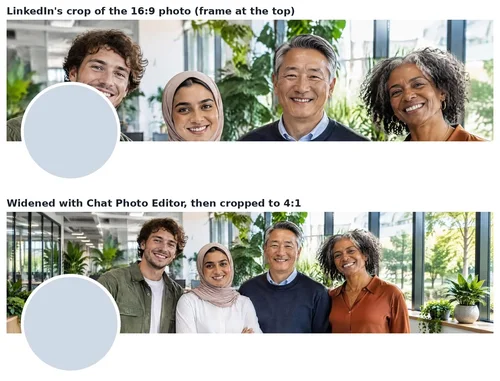
We measured this on a desktop profile in Chrome: the photo started about 3% in from the left edge and covered roughly the bottom half of the banner's height. With a team photo cropped straight to 4:1, that's exactly where the person on the left stands. The LinkedIn app lays out profiles differently on a phone, so leave a margin around every face instead of designing to the pixel.
Method 1: Upload your photo and crop it in LinkedIn
If your photo is already 4:1, or a tight strip of faces is enough, LinkedIn's own editor is the fastest way to set a banner. These are the desktop steps; the LinkedIn app has the same options under your cover image.
Step 1
Open your cover image settings
On your profile, open the cover image options and choose Edit cover image. If you already have a banner, click Change photo.
Step 2
Upload your photo
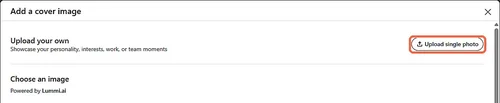
In the Add a cover image window, click Upload single photo and pick a JPG or PNG under 8 MB.
Step 3
Drag the crop frame and save
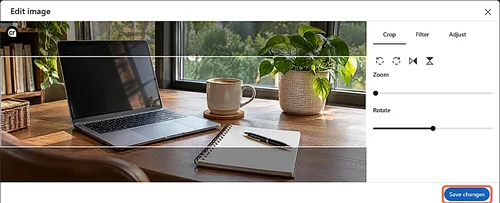
LinkedIn shows a 4:1 frame over your photo. Drag the photo or use Zoom so every head is inside the frame, then click Save changes and save the cover image.
Limit: the frame keeps only a 4:1 strip, so a 16:9 team photo loses about 56% of its height. With the frame at the top, our team of four kept their faces but were cut off at the chest, the people filled the whole width, and the profile photo covered the chin of the man on the left. To keep whole people and room around them, widen the photo first, as in Method 2.
Method 2: Turn a portrait or team photo into a 4:1 banner with MyEdit
To keep everyone in the shot, widen the photo to a 4:1 shape before you upload it. Chat Photo Editor in MyEdit adds matching background on both sides from a text prompt in your browser, and MyEdit's Image Cropper trims the result to exactly 4:1 inside the same editor. MyEdit is our own product, and the same workflow works in any editor that can extend a photo with AI and crop it to a set ratio.
Step 1
Upload your photo and check the model
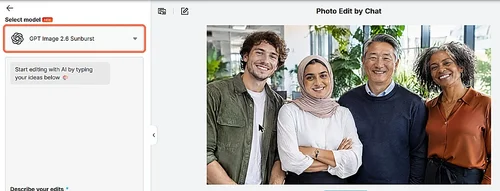
Open Chat Photo Editor and upload your portrait or team photo. It takes JPG, PNG, GIF, WebP and BMP files up to 50 MB. The editor opens as Photo Edit by Chat; leave the model on GPT Image 2.6 Sunburst, the default.
Step 2
Describe the banner and protect the faces
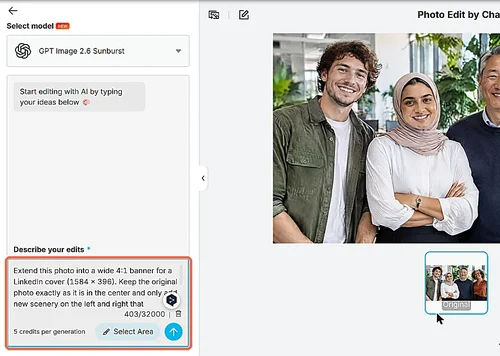
In Describe your edits, ask for a wide 4:1 LinkedIn cover that keeps your photo in the center and adds matching background on both sides, and add one sentence asking to keep every face, hair, expression and clothing exactly the same. Our full prompt is below. The editor shows the cost, 5 credits per generation, and asks you to confirm before it runs.
Step 3
Check every face
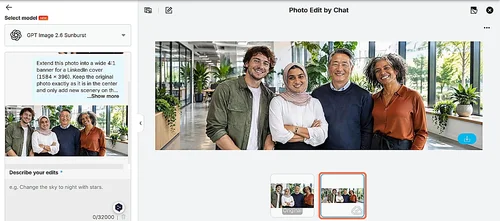
The result appears next to your Original; each of ours was ready in under a minute. Zoom in to 100% and compare each face with the original before you go on. Ours came back at 2172 × 724 pixels, a 3:1 shape, so it still needs a crop.
Step 4
Crop it with the LinkedIn Cover preset
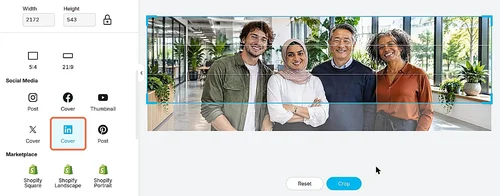
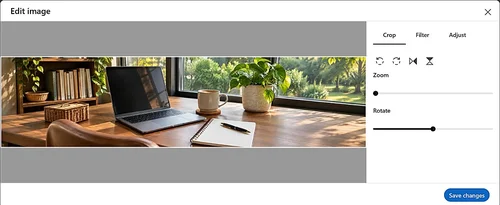
In the left sidebar, open Essentials and choose Crop/Rotate/Flip. Under Social Media, pick Cover with the LinkedIn icon (4:1). The frame starts in the middle and can cut through foreheads, so drag it up until every head is inside, then click Crop. Our banner came out at 2172 × 543 pixels.
Step 5
Download and upload it to LinkedIn
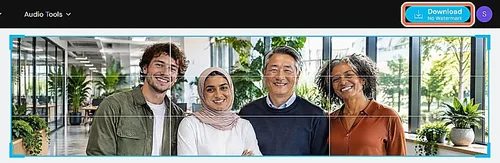
Click Download at the top right; the file has no watermark. Then upload it to LinkedIn as in Method 1. Because it's already 4:1, LinkedIn's frame matches it, and there's nothing left to crop.
The prompt we used, word for word: Extend this photo into a wide 4:1 banner for a LinkedIn cover (1584 x 396). Keep the original photo exactly as it is in the center and only add new scenery on the left and right that continues the same scene, light and perspective. Do not add text, letters, logos or people, do not add a second sun, and do not duplicate objects. Keep every person's face, hair, expression and clothing exactly the same.
The last sentence matters for people photos, and the earlier ones head off the mistakes we saw most often when we tested AI extension: stray text, duplicated objects and, on sunset photos, a second sun.
Key features
 Edits a photo from a plain-language description, with no masks or layers
- Model menu with GPT Image, Nano Banana, Qwen, Seedream and Kling models; GPT Image 2.6 Sunburst is the default
- Select Area limits an edit to the part of the photo you mark
- Keeps your Original next to each result, so you can compare every face
- Crop, Resize Image and Add Text to Image in the Essentials panel of the same editor
- Works in desktop and mobile browsers; downloads have no watermark
Limit: every MyEdit plan, the free one included, lets you claim 3 free credits per day, and one generation with GPT Image 2.6 Sunburst costs 5 credits, so one generation costs more than one day's free credits. Cropping is free.
What happened to the faces in our test
We made three photos of fictional people with MyEdit's AI Image Generator, the shots a LinkedIn banner usually starts from: one person, head and shoulders; a team of four; and a team of seven in two rows. Each went through Chat Photo Editor twice with the prompt above. We set the pass mark before looking at any result: every person still looks like the same person; nobody is added, duplicated or merged; and no warped faces or hands, stray text or logos at the new edges. Every face was checked at 100% against the original.
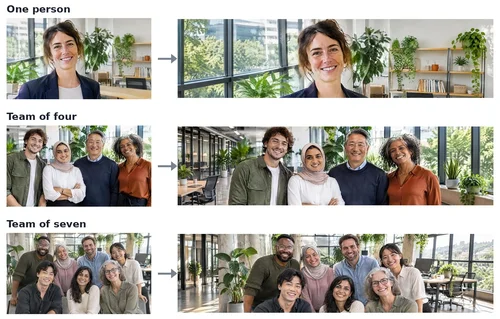
Chat Photo Editor: 6 of 6 results passed. Every person stayed recognizable, nobody was added or lost, and the new edges continued the office naturally. Up close, the faces are redrawn rather than copied: teeth, wrinkles and the shape of the eyes differ slightly from the original. People also fill most of the height, so heads sit near the top edge and the 4:1 crop has to keep them in.
Chat Photo Editor for people photos
Pros

- Kept every face recognizable in our six people tests
- Nobody added or lost, even in a team of seven
- Crop to LinkedIn Cover in the same editor
- One prompt in plain words, no masking
Cons

 Redraws faces slightly instead of copying them
- Returns a 3:1 image, so a crop is always needed
- The centered crop frame can cut heads
- A run costs more than the daily free credits
What about landscapes and office photos?
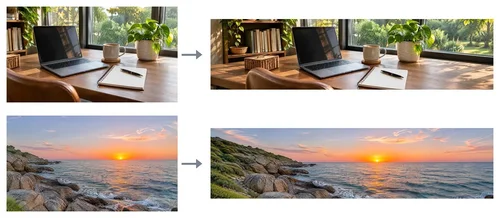
A scene with no people is the easier case. We also widened a home-office desk and a rocky coastline at sunset in Chat Photo Editor: both came back seamless, with faint, unreadable marks on the book spines as the only flaw. MyEdit's AI Image Extender worked on open, simple scenes such as hillsides in our test, and its LinkedIn Cover preset returns a 4:1 image (4096 × 1024 pixels) in one step, with no crop needed. For busy rooms, Chat Photo Editor gave us cleaner edges.
Which method should you use?
For a portrait or team photo, widen it with Chat Photo Editor and check every face; use LinkedIn's own crop when every pixel must stay real. Here's how we'd choose by photo:
Your photo | Best method | Why |
|---|---|---|
A portrait or team photo | Chat Photo Editor + Image Cropper | Everyone fits and stayed recognizable in our test; check each face at 100% |
A portrait where the face must stay pixel-exact | LinkedIn's crop | AI redraws faces slightly |
Already 4:1, or a tight strip of faces is enough | LinkedIn's crop | Nothing needs to be generated |
A landscape or office with no people | Chat Photo Editor + Image Cropper | Seamless in our test; for open, simple scenes, AI Image Extender also works |
Have the opposite problem, a wide photo for a tall post? Our guide on how to post a full photo on Instagram without cropping extends photos to 4:5 instead.
More MyEdit tools for your LinkedIn banner
Two more MyEdit tools help once your banner has the right shape: one adds words, the other sets an exact size.
Add Text to Image
Add Text to Image puts a name, a team name or a short tagline on your banner, with your choice of font, size and color. On a team photo, place it in the background beside the group, away from faces and the profile photo. Limit: it works on desktop only; on a phone browser, MyEdit shows Only Available on Desktop.
Image Resizer
Image Resizer sets an exact size by pixels, for example 1584 × 396, and it's free. This step is optional: LinkedIn's crop frame matched our larger 2172 × 543 banner exactly, and upscaling a banner that's already wider than 1584 pixels adds nothing. Limit: with the height on Auto, it keeps the image's shape, so it can't turn a 16:9 photo into a 4:1 banner.
Test details and sources
- Tested on November 12, 13 and 16, 2026, in MyEdit Web on Chrome for Windows; LinkedIn was checked on a desktop profile in Chrome on November 13.
- Test photos: 16:9 photos made with MyEdit's AI Image Generator (GPT Image 2.6 Sunburst at 2K, 2848 × 1600 pixels): three photos of fictional people (one person, a team of four, a team of seven) and, as scenes without people, a home-office desk and a rocky coastline at sunset. No real photos or real people were used.
- Task: widen each photo in Chat Photo Editor with GPT Image 2.6 Sunburst and the prompt shown above (the face sentence was used for the people photos; two runs each), then crop it with Image Cropper's LinkedIn Cover preset. Six scenes without people also went through AI Image Extender's LinkedIn Cover preset on November 12, 2026.
- Pass mark, set before the results: every person still looks like the same person; nobody added, duplicated or merged; no visible seams; no warped faces, hands or objects, stray text or logos. Results were judged by eye at banner size and at 100%.
- Real photos can behave differently from these AI-generated test photos, especially with more people, glasses, hands or text on clothing.
- LinkedIn's rules: Add or change the cover image on your profile, LinkedIn Help, verified November 13, 2026. Profile photo position: our own measurement on a desktop profile, November 13, 2026.

