
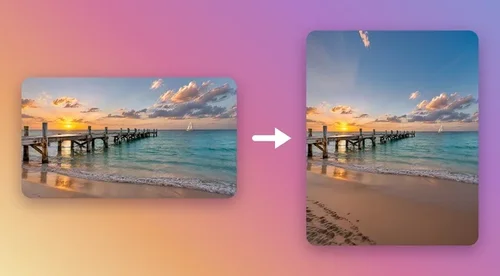
Key Takeaway
- Instagram keeps a photo's full shape only between 1.91:1 (wide) and 3:4 (tall), at up to 1080 pixels wide; anything outside that range gets cropped.
- For a landscape photo inside that range, Instagram's own expand button posts the whole shot, but it shows up small in the feed.
- MyEdit's AI Image Extender turns a wide photo into a tall 4:5 post by generating new sky and ground, so there are no borders and nothing is cut off.
- In our test, MyEdit's AI Image Extender returned an exact 4:5 file both times; the beach photo passed our check and the lake photo failed, so check the new areas before you post.
- MyEdit's Image Resizer then brings the result down to 1080 × 1350 pixels, the size Instagram shows a 4:5 post at.
To post a full photo on Instagram without cropping, tap the expand button on the new post screen so Instagram keeps your photo's original shape, or reshape the photo to 4:5 before you upload it. Instagram only crops photos that are wider than 1.91:1 or taller than 3:4, so the fix depends on your photo's shape and how big you want it in the feed.
Below you'll find Instagram's own method, a MyEdit method that works on your phone or computer, and what happened when I ran two wide test photos through it.
Why Instagram crops your photo
Instagram crops a photo when its shape falls outside the range the feed supports: from 1.91:1 landscape to 3:4 portrait. Inside that range, it keeps your whole photo and only changes its size. Here are the rules from Instagram Help Center, verified on November 9, 2026, and what each one means for you.
Requirement | Instagram's rule | What it means for you |
|---|---|---|
Width | Photos 320 to 1080 pixels wide keep their resolution; wider photos are sized down to 1080 | Export at 1080 pixels wide; extra pixels add nothing |
Widest shape | 1.91:1 (1080 × 566 pixels) | Panoramas wider than that lose their sides |
Tallest shape | 3:4 (1080 × 1440 pixels) | Tall 9:16 photos lose their top and bottom |
Profile grid | 3:4 thumbnails since January 2025 | Wide posts show only their center in your grid |
So a standard 16:9 landscape photo (1.78:1) is inside the range: Instagram can post it whole, just wide and short. A 4:5 post is the safest shape for the feed: it's tall, it's never cropped, and in the 3:4 profile grid it loses only a thin strip (about 3%) from each side.
Method 1: Post the full photo with Instagram's expand button
The fastest way to keep a landscape photo whole is built into the Instagram app: on the new post screen, switch from Instagram's default square crop to your photo's original shape. This works on iPhone and Android, and the Crop your photo on Instagram help page covers the frame and zoom controls.
Step 1
Start a new post
Tap the plus (Create) button, choose Post, and pick your photo from your gallery.
Step 2
Tap the expand button
Instagram first shows a square crop. Tap the round button with two corner marks in the bottom-left corner of the preview, and Instagram switches to your photo's own shape, as long as it's between 1.91:1 and 3:4.
Step 3
Check the frame and share
If your photo is wider or taller than that range, drag it to choose what stays in the frame. Then tap Next, add your caption and share.
Before: Instagram's default square crop cuts both sides.
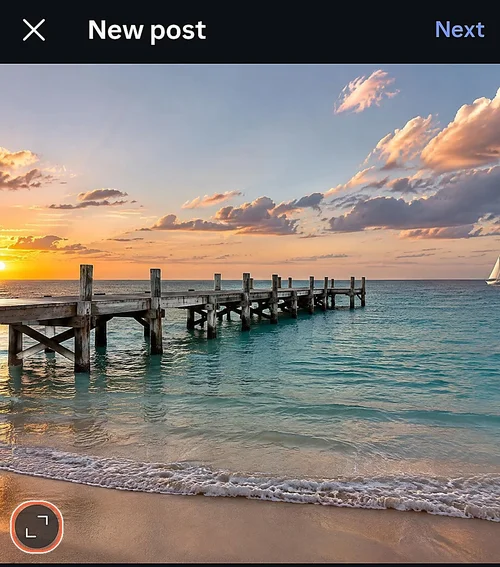
After tapping the expand button: the whole photo, posted wide.
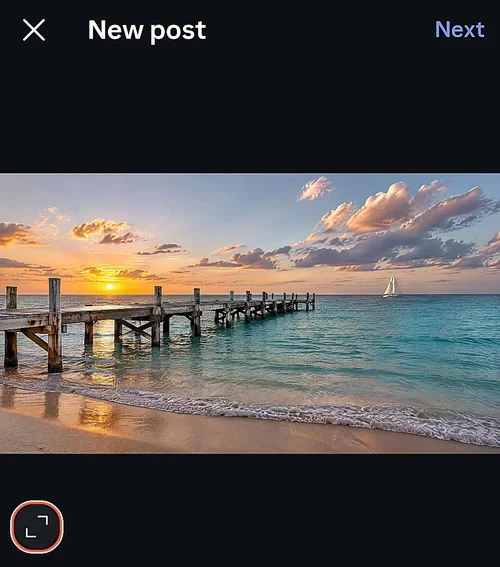
Limit: a 16:9 photo posted this way takes up less than half the height of a 4:5 post in the feed, and your profile grid still shows only its center. Photos wider than 1.91:1 or taller than 3:4 still get cropped. If you want the whole scene and a big post, reshape the photo first, as in Method 2.
Method 2: Extend the photo to 4:5 with MyEdit on your phone or computer
To fill a tall 4:5 post without cutting anything, add new space above and below the photo instead of borders. AI Image Extender in MyEdit does that in your browser: it keeps your photo as it is and generates matching sky, water or ground around it. MyEdit is our own product, and the same workflow works in any editor that can extend a photo with AI.
Step 1
Upload your photo to AI Image Extender
Open AI Image Extender and click Choose a file. It takes JPG, PNG, GIF, WebP and BMP files up to 50 MB, so a full-size camera or phone photo is fine.
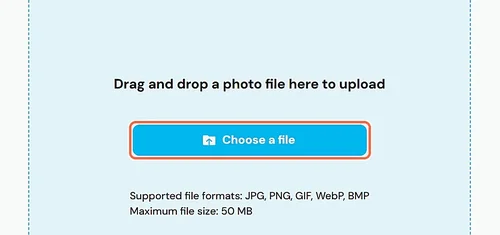
Step 2
Choose 4:5 and check where the new space goes
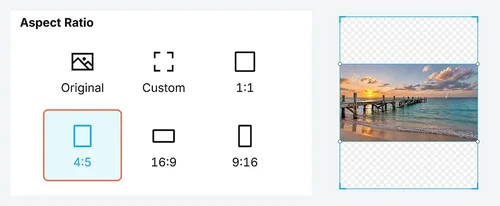
Under Aspect Ratio, pick 4:5. The canvas grows above and below your photo, and the checkered areas show where AI Image Extender will add new content. Drag the photo if you'd rather keep more space at the top or the bottom. The Instagram Post preset under Social Media is square (1:1), so use 4:5 for a full-height post.
Step 3
Generate, compare and download
Click Generate. Each run gives you two results to choose from; in our test, a run used 3 credits. Open each result, look closely at the new areas, then click Download. The file has no watermark and keeps your photo's width: our 2848-pixel-wide photo came back at 2848 × 3560 pixels, exactly 4:5.

Step 4
Resize the result to 1080 pixels wide
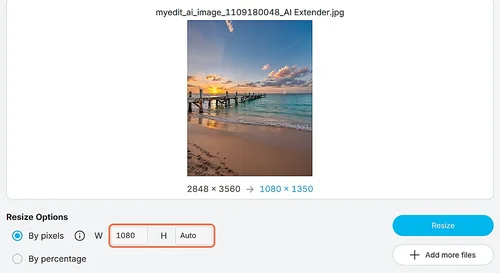
Instagram sizes every photo down to 1080 pixels wide anyway, so you can do it yourself and upload a lighter file. In Image Resizer, choose By pixels, type 1080 for the width and leave the height on Auto. Our 1.9 MB result came out at 1080 × 1350 pixels and 263 KB. This step is optional.
Key features
 Aspect ratio presets for 4:5, 1:1, 9:16, 16:9, 5:4 and 21:9, plus a free-drag Custom frame
- Social media presets for Instagram, Facebook, YouTube, X, LinkedIn and Pinterest
- Extends up, down, left or right; you position the photo on the canvas
- Two results per run, so you can keep the better fill
- Keeps your photo's original width in the download
- Downloads with no watermark
What AI Image Extender added in our test
One of my two test photos passed and one failed. In both, AI Image Extender added details of its own instead of plain sky, sand or water. I set the pass mark before looking at any result: no visible seams, no warped objects, and nothing new invented in the frame.
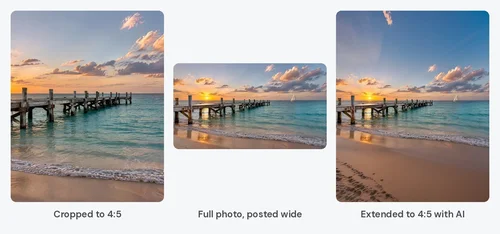
Beach photo: both results extended the sky and the sand smoothly, and both added a trail of footprints in the sand that wasn't in the original. Result: pass.
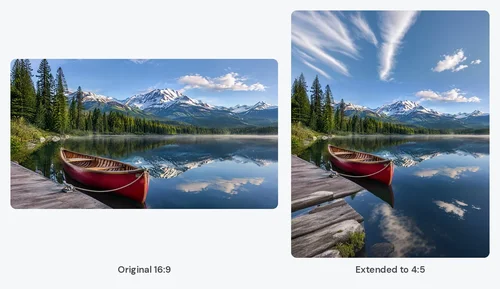
Alpine lake photo: the new sky and reflections matched the scene, but the extended dock in the bottom-left corner doesn't line up with the original: its planks change direction. Result: fail.
AI Image Extender at a glance
Pros

- Exact 4:5 output at the photo's original width
- Two results per run to choose from
- No borders, no stretching and no watermark
Cons

 Adds details that weren't there, like footprints in the sand
- Can misalign lines it continues, like the planks of a dock
- No 3:4 preset; the Custom frame is set by dragging, not by numbers
- The Instagram Post preset is square, not the taller 4:5
Our test photos were AI-generated landscapes with open sky and sand at the edges, the easiest case for this kind of tool. Real photos with people, text or busy edges can behave differently, so always check the new areas before you post.
Which method should you use?
Use Instagram's expand button when every detail in the photo must stay real, and extend the photo when you want a big post and the edges are simple scenery. Here's how I'd choose by photo:
Your photo | Best method | Why |
|---|---|---|
Landscape, and a small post is fine | Instagram's expand button | Nothing in the photo changes |
Landscape you want big in the feed | Extend to 4:5 | Fills the tallest uncropped post shape |
Panorama wider than 1.91:1 | Extend to 4:5 | Instagram would cut its sides |
Product, document or anything that must be exact | Instagram's expand button | AI-added areas aren't real |
Posting vertical video as well? Our guide on how to make a YouTube Short covers the same wide-to-vertical problem for clips.
More MyEdit tools that help a photo fit Instagram
Two other MyEdit tools help when the problem is the photo's size rather than its shape.
Image Resizer
Image Resizer sets an exact width or height by pixels or by percentage, for one photo or several at once. It's free to use. Limit: with the height on Auto it keeps the photo's shape, so it can't turn a wide photo into a tall one.
AI Image Upscaler
AI Image Upscaler enlarges a small photo 2X, 3X or 4X, which helps when your photo is narrower than 1080 pixels. Limit: anything past 1080 pixels wide adds nothing on Instagram, which sizes every photo down to 1080, so a 4X upscale of a 1000-pixel photo is wasted.
Test details and sources
- Tested on November 9, 2026, in MyEdit Web on Chrome for Windows.
- Test photos: two 16:9 landscapes (a beach and an alpine lake) made with MyEdit's AI Image Generator at 2848 × 1600 pixels; no real photos were used.
- Task: extend each photo to 4:5 with AI Image Extender (two results per run), then resize one result to 1080 pixels wide with Image Resizer.
- Pass mark, set before the results: no visible seams, no warped objects, nothing new invented in the frame. Results were judged by eye.
- Real photos with people, text or busy edges can behave differently from these AI-generated test photos.
- Instagram's rules: Image resolution of photos you share on Instagram and Crop your photo on Instagram, verified November 9, 2026. Profile grid change: Business Today, January 21, 2025.
FAQs
1. What size should a photo be to post it full on Instagram?


Use 1080 × 1350 pixels (4:5) for a tall post or up to 1080 × 1440 (3:4) for the tallest one. Any shape between 1.91:1 and 3:4 is posted whole; Instagram sizes wider files down to 1080 pixels wide.
2. Why does Instagram crop my photo?
Instagram crops photos wider than 1.91:1 or taller than 3:4 to fit the feed. Its new post screen also starts with a square crop, which cuts a wide photo until you tap the expand button.
3. Can I post a landscape photo on Instagram without cropping it?
Yes. On the new post screen, tap the expand button to keep the photo's original shape. The post will be short in the feed; to fill a tall post instead, extend the photo to 4:5 before uploading.
4. Does the Instagram profile grid crop my photos?
Yes. Since January 2025, the profile grid shows posts as 3:4 thumbnails, so wide photos show only their center there. The full post still appears when someone taps it.
5. Is the extended part of the photo real?
No. AI Image Extender generates the new areas to match your photo, and in our test it added details like footprints. Check the edges before posting, and skip it for photos that must be exact.