AI Transition
Turn Your Photos Into a One-Take AI Transition Video
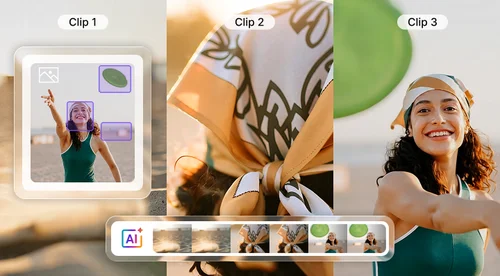
Add 4 or 6 photos, pick a template, and AI moves the camera from one shot to the next with no cuts in between. Sound is built in.
Create AI Transition Videos for Every Trip and Look
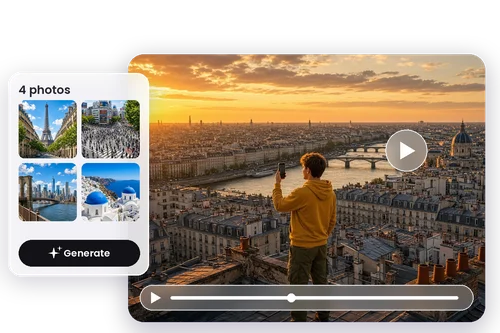
Turn a Trip Into One Continuous Shot
You hit four cities in a week. Pick One Shot Flow, add one photo from each stop, and AI flies the camera from the first view straight into the next, like one long drone shot.
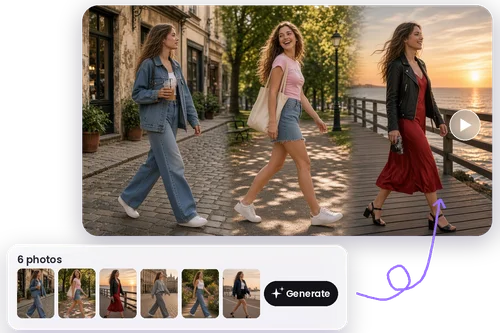
Change Outfits and Places Mid-Stride
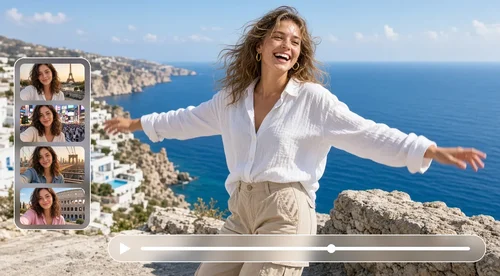
Six outfits from one weekend? With Walking Shift, you walk across the frame and your outfit and background change every couple of steps. Motion Hop does the same with four photos and a wave, a snap, or a jump.
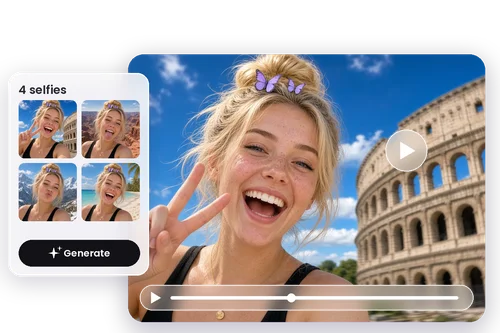
Turn Four Selfies Into a Travel Recap
Four selfies from the trip are all you need. Selfie Shake whips the camera up to the sky and lands you in the next place.
How to Make an AI Transition Video With MyEdit
 Step 1
Select AI Transition in MyEdit Agent
Open MyEdit Agent, click Skills under the prompt box, and choose AI Transition from the list.
Step 2Upload 4 or 6 Photos
Add your photos in the order you want them to play. They don't all need to show the same person.
Step 3Pick a Template and Generate
Choose a template from the cards in the chat. AI builds a 720p video with sound, vertical 9:16 by default, and saves it to My Library.
Why Choose MyEdit's AI Transition

Camera Moves You Couldn't Film
Fly-throughs and whip pans usually take a drone, a gimbal, or a lot of retakes. AI Transition builds them from still photos.

Pick a Style, AI Handles the Timing
You choose the template and the order of your photos. AI works out the motion and timing that carry each shot into the next.

Sound Comes Built In
Every template includes its own audio, so the video you download is ready to post as is.

Vertical by Default
Videos come out in 9:16 for Reels, Shorts, and TikTok. For a feed post or a YouTube clip, ask for 16:9, 4:3, 1:1, or 3:4.

Try Another Style, Same Photos
If the first result isn't quite right, ask for a different template in the same chat and MyEdit reuses the photos you already uploaded.

Keep Editing in the Chat
When your video is ready, MyEdit suggests what to try next, like an anime look or a night scene, and you can keep going right there.
More Ways to Create with MyEdit
AI Transition FAQ
What is an AI transition video?


AI Transition is MyEdit's AI transition video tool. It turns 4 or 6 still photos into one short video, with AI creating the camera movement that carries you from one photo to the next, such as a fly-through or a whip pan. The result plays as one continuous take instead of a string of hard cuts. It starts from photos, not video clips.
How many photos do I need?
It depends on the template, and the count has to match exactly. Motion Hop, Selfie Shake, and One Shot Flow each use 4 photos. Walking Shift and Snap & Sway use 6. Add too few and MyEdit tells you how many more it needs. Add too many and it asks which ones to keep.
Can I use video clips instead of photos?
No. AI Transition works from photos only, so it can't add transitions between existing clips or extend a video you already have. If all you have is footage, grab a few still frames from it and use those.
Can I add my own music?
Not at the moment. Each template comes with its own sound, and you can't swap in your own track or voiceover.
What resolution and aspect ratios are available?
Videos are 720p and vertical 9:16 by default, ready for Reels, Shorts, and TikTok. You can also ask for 16:9, 4:3, 1:1, or 3:4. Length is set by the template, from 4 seconds with Selfie Shake to 17 seconds with One Shot Flow. For a sharper file, run the finished video through AI Video Enhancer.
How many credits does AI Transition use?
AI Transition uses 9 credits per second of video. Each template has a fixed length, so a video costs from 36 credits with Selfie Shake (4 seconds) to 153 credits with One Shot Flow (17 seconds). Free accounts can claim 3 credits a day from Earn Free Credits. Each day's credits stay valid for one month, so saving them up covers Selfie Shake, Walking Shift, or Snap & Sway. Paid plans include monthly credits, and you can buy more at any time.
What if I don't like the result?
Ask for a different template in the same chat. MyEdit keeps the photos you already uploaded, so you can try another style without starting over. If a video can't be made, MyEdit lets you know in the chat, including when you don't have enough credits.
Can I use AI Transition videos commercially?
Yes. You can use the videos you create in commercial projects. Just make sure you own the photos you upload or have permission to use them, and follow the CyberLink Terms of Service.
Where are my videos saved?
Every video goes to My Library, in its own AI Transition folder. You can start a new video from that folder too, and MyEdit opens AI Transition for you. Videos stay in your cloud storage until you delete them.