
Key Takeaway
- To put Santa in your own photo, take a picture of your living room at night with the tree lights on, upload it to MyEdit's Chat Photo Editor and describe the moment you want to catch.
- A believable Santa needs four things: the right size for your room, the same light as your room, a shadow where his boots touch the floor and the rest of your room left untouched. Ask for all four in your request.
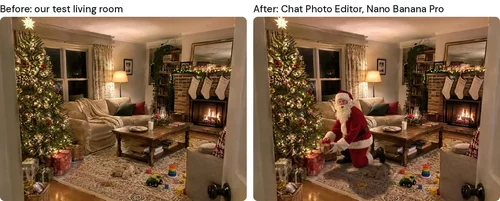
- In my test, MyEdit's Chat Photo Editor with Nano Banana Pro gave the most realistic Santa and left the rest of the room almost exactly as it was: 0.2% or less of the frame changed outside Santa and his shadow.
- GPT Image 2.6 Sunburst, the default model in MyEdit's Chat Photo Editor, costs 5 credits instead of 6, but in one of my test rooms it rebuilt the coffee table.
- To put your own pet in the scene, MyEdit's AI Image Generator takes photos of your pet as reference images. That's how my cat, Úrsula, ended up under the tree in my photo.
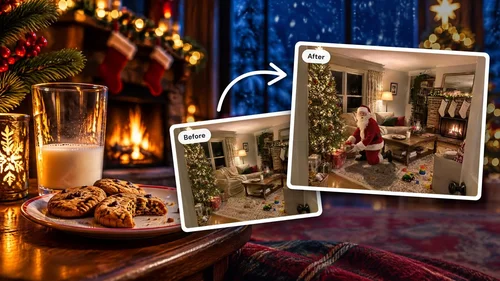
To put Santa in your own photo, snap your living room on Christmas Eve with the tree lit, then ask an AI photo editor to add Santa "caught in the act" by your tree, at his real size, lit like the rest of the room and with a shadow on the floor. The result looks like a photo someone took from the doorway at midnight, not like a sticker on top of your picture.
I tried it on two AI-made living rooms: a cozy family room with a fireplace, and a small apartment where my own cat, Úrsula, sleeps on the rug. I compared two AI models, then let Úrsula loose. Below you'll find the method, which model to pick, how I got Úrsula into the photo (and what she did when she spotted Santa), two more funny scenes and the details that give an AI Santa away.
What makes a caught-Santa photo believable
A caught-Santa photo is believable when Santa looks like he was in the room when the picture was taken. In practice, that comes down to four things:
- Size: a kneeling Santa should reach about the height of the sofa back, not the height of the presents.
- Light: the warm glow of the tree and the lamp should fall on his red suit from the same side as on the furniture.
- Shadow: his boots need to touch the floor, with a soft shadow under them. A Santa without a shadow floats.
- Your room, untouched: the tree, the toys and the coffee table should stay where your kids know they are.
Your photo matters as much as the edit. Take it at night with the tree lights on, from the doorway where a curious kid would stand, and leave some floor space next to the tree for Santa to kneel in.
How to put Santa in your photo with MyEdit
MyEdit is our own product, and the same approach works in any AI photo editor that edits a picture from a written description. In MyEdit, the tool is Chat Photo Editor: you upload a photo, write what you want changed, and it returns your photo with the change made. It works in your browser on a computer, and in mobile browsers on a phone.
Step 1
Upload a photo of your room
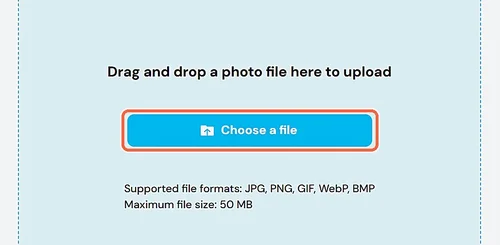
Open Chat Photo Editor and click Choose a file. It takes JPG, PNG, GIF, WebP and BMP files up to 50 MB, so a photo straight from your phone works.
Step 2
Pick Nano Banana Pro and describe the moment
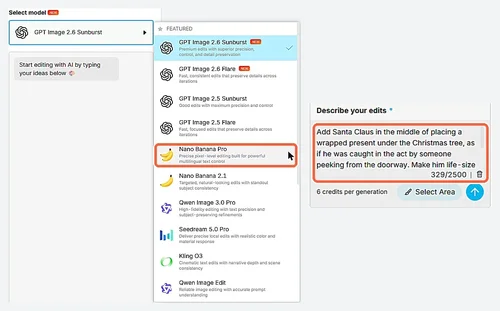
Open the model list (GPT Image 2.6 Sunburst is the default) and pick Nano Banana Pro, which gave the most realistic Santa in my test. Then, in Describe your edits, say what Santa is doing, how big he is, how he's lit and what must stay the same. You'll find the prompt I used right after these steps.
Step 3
Generate, check the details and download
Press the arrow button. The cost is shown under the box: 6 credits per generation with Nano Banana Pro. After 20 to 30 seconds, Santa appears next to the Original thumbnail. Zoom in on his hands, boots and shadow, then click the download button in the corner of the image.
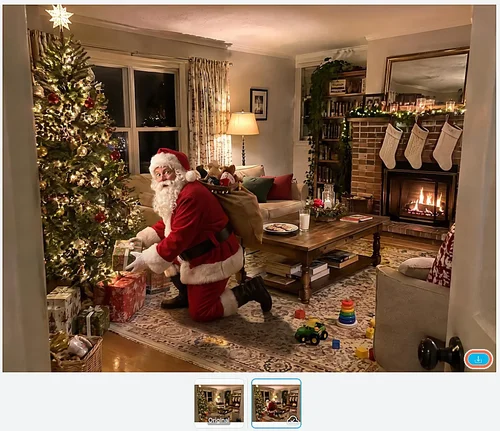
The prompt I used in Step 2
Add Santa Claus in the middle of placing a wrapped present under the Christmas tree, as if he was caught in the act by someone peeking from the doorway. Make him life-size for this room, lit by the tree lights and the lamp like everything else, with a soft shadow on the floor. Keep everything else in the photo exactly the same.
The underlined parts ask for the four things that make Santa believable: size, light, shadow and your room, untouched.
Each new message in the same chat edits the latest result, so you can keep going: move Santa, change what he's holding or add a detail without starting over. To keep part of the room exactly as it is, mark the spot for Santa with Select Area before you write, and the edit stays inside it.
GPT Image 2.6 Sunburst or Nano Banana Pro?
Pick Nano Banana Pro for the most realistic Santa; GPT Image 2.6 Sunburst is the default and costs one credit less. I gave both models the same request on both rooms on November 22, 2026, and ran the fireplace room twice with each ("room changed" is the share of the photo outside Santa and his shadow that changed, measured by comparing each result with the original):
GPT Image 2.6 Sunburst | Nano Banana Pro | |
|---|---|---|
Credits per generation | 5 | 6 |
Size of the photo you get back | 1448 × 1086 in every run | 2400 × 1792 in every run, a little larger than the photo I uploaded |
How Santa looks | Velvet suit lit by the tree and lamp, soft shadow under his boots | Lifelike face, beard and pose; reads like a real person caught in the room |
Room changed | 0.2% and 0.4% in the fireplace room (two runs); 3.9% in the apartment, where it rebuilt the coffee table | Under 0.1% in the fireplace room (two runs); 0.2% in the apartment |
Best for | A believable Santa for one credit less | The most realistic Santa |
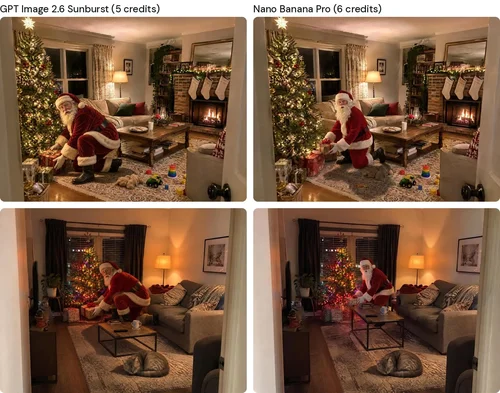
Nano Banana Pro won on realism. Santa's face, beard and the way he kneels look like a real person caught in a real room, and it left the apartment almost exactly as it was, Úrsula included. Sunburst's Santa is warmer and softer, with nice light on the velvet, but in the apartment it rebuilt the coffee table and the books on it. Sunburst also returns a smaller photo, which is fine for a phone or a message; Nano Banana Pro's is a little larger than the one you upload.
Either model costs more than one day's free credits per generation: every MyEdit account can claim 3 free credits a day, and daily free credits stay valid for a month, so two saved-up days cover one Santa. If you're curious how these two model families compare beyond Santa, my colleague Luigi Esposito put them through five same-prompt tests of GPT Image and Nano Banana in MyEdit.
How my cat, Úrsula, caught Santa
If you have a pet, put it in the photo: a cat or dog reacting to Santa is the funniest version of all. Getting the real Úrsula, and not just any gray cat, took a different tool. Chat Photo Editor works on one photo at a time, and describing her in words gave me a generic tabby. MyEdit's AI Image Generator takes reference images, so I gave it my apartment photo and a photo of Úrsula and asked for her asleep on the rug.
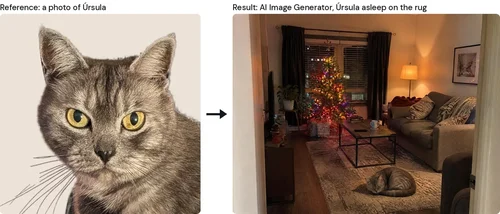
Then Santa came in the usual way: the same request in Chat Photo Editor, plus one line asking it to keep the sleeping cat exactly as she is. She didn't move a whisker.
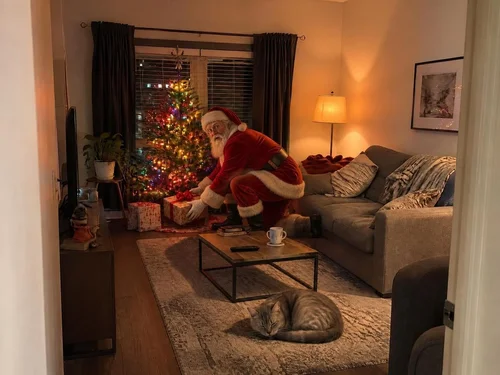
Anyone who lives with a cat knows how this ends. For the next shot I went back to AI Image Generator with Nano Banana Pro and three reference images: the photo of Santa at the tree, a photo of Úrsula and a close-up of her face so her amber eyes came out right. I asked for her to leap onto the tree, the tree to tip over and Santa to flee.
It took two prompts, and the model didn't do everything I asked. The first one gave a very real photo, but it redrew the room from a new angle and swapped in a fuller tree. For the second, I listed every object in the room and where it stands, and that kept my room. The tree only wobbles instead of falling, though, and Santa is walking in rather than running away. I kept it anyway: Úrsula launching herself at the tree just as Santa walks in is just as funny.
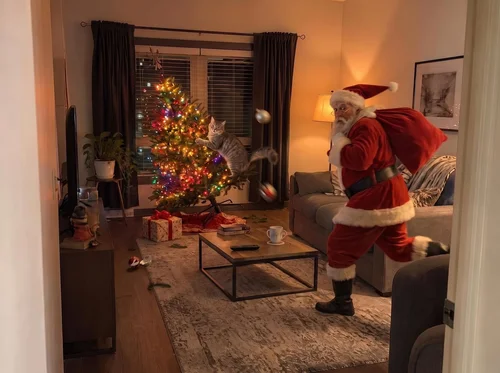
Two tips if you try this with your own pet: use a clear photo where its face fills the frame, because that's where the eyes and markings come from, and spell out everything in the room you want to keep. If the first result changes the room, run it again with a longer list.
Two more funny ways to catch Santa (I tried them)
Once Santa looks right by the tree, the same tool can tell a better story. I made these two scenes in Chat Photo Editor with GPT Image 2.6 Sunburst, one request each.
Santa raiding the cookies
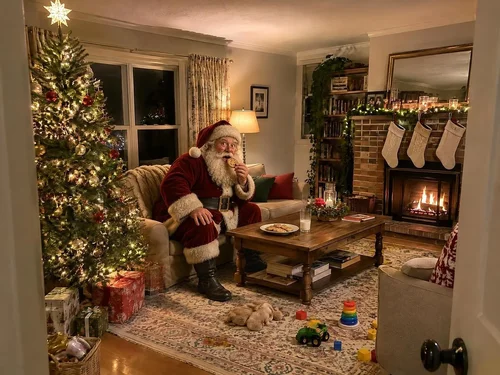
I asked for Santa on the sofa, caught mid-bite with a guilty face, crumbs in his beard and the milk half gone. He came back sitting on the right sofa cushion, cookie in hand, staring at the doorway like he heard a floorboard creak. It's the one that made me laugh out loud, and it works best in a room where the cookies and milk are already in the shot.
Result: pass.
Sample prompt
Add Santa Claus sitting on the sofa, caught mid-bite with one of the cookies left out for him: a guilty look on his face, cookie crumbs in his beard and the glass of milk half gone. Make him life-size for this room, lit by the tree lights and the lamp like everything else. Keep everything else in the photo exactly the same.
Santa on the security camera
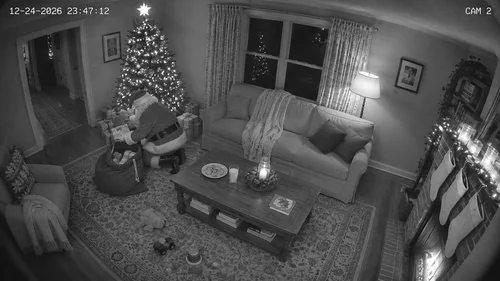
A black-and-white night-vision frame with a timestamp is the closest thing to proof a kid can ask for. My first try kept the photo's own angle, which put the camera next to the open door, where nobody mounts one, and Santa looked straight into it. Asking for a camera high in the far corner of the ceiling, with Santa busy at the tree and completely unaware he's being filmed, fixed both.
Chat Photo Editor redrew the room from the new angle, kept the tree, sofa, coffee table and stockings, and returned a wide 16:9 frame instead of my 4:3 photo. The timestamp and camera label came out exactly as I typed them.
Result: pass.
Sample prompt
Turn this photo into a still from a home security camera mounted high in the far corner of the ceiling, looking down on the whole room: black-and-white night vision, with "12-24-2026 23:47:12" in the top-left corner and "CAM 2" in the top-right corner. Santa Claus is kneeling by the Christmas tree, busy putting presents under it, completely unaware he's being filmed. Keep the tree, sofa, coffee table and stockings.
What gives an AI Santa away (and how to fix it)
Even a good result can have one detail that gives it away. These are the ones I spotted in my tests, and what helped:
- Small things move. In the fireplace room, a plush toy on the rug shifted, which I'm counting as Santa clearing a path rather than a mistake. In the apartment, GPT Image 2.6 Sunburst rebuilt the coffee table and the books on it, which is harder to explain. Check the spots your kids know by heart, and use Select Area if something must not move.
- Santa looks into the camera. That's fine for a "caught you" photo, but on a hidden camera it breaks the story. Say that he doesn't know he's being watched.
- The angle has to make sense. A security camera sits high in a corner, not in a doorway. Describe where the camera is, not just the style.
- Big action can change the room. When I asked for the tree to fall, Nano Banana Pro first redrew the whole room. Listing every object and where it stands kept the room, at the cost of a smaller wobble. Ask for one big change at a time.
- Blur doesn't hide much. I asked for a hurried, blurry phone snapshot to make one result look more real, and it smeared Santa without making him more believable. Keep the photo sharp and fix the details instead.
- Photo size. GPT Image 2.6 Sunburst returns a smaller photo than the one you upload (1448 × 1086 from 2304 × 1728). It's plenty for a phone screen or a message; for a print, Nano Banana Pro's 2400 × 1792 is the safer choice.
Chat Photo Editor also widens photos into banners and other shapes, as in my guide to making a LinkedIn banner that fits.
Chat Photo Editor for Santa photos at a glance
Pros

 Matches Santa to your room's light and adds a floor shadow from one written request
- With Nano Banana Pro, 0.2% or less of the room changed outside Santa in my test
- Follow-up messages refine the latest result without starting over
- Works in mobile browsers, so you can edit the photo on the phone you took it with
Cons

 One generation costs more than one day's free credits (5 or 6 credits)
- Works on one photo at a time, so adding your own pet takes AI Image Generator's reference images
- Small objects can shift between runs, so check the room before you show it off
Test details and sources
- Tested on November 22, 2026, in Chat Photo Editor and AI Image Generator on MyEdit Web (Chrome on Windows), with the default settings and no Select Area.
- Test photos: two 4:3 living rooms (2304 × 1728) made with MyEdit's AI Image Generator (GPT Image 2.6 Sunburst, 2K); the only real photo is the one of my cat. Úrsula was added to the apartment with AI Image Generator, using the room photo and her photo as reference images. Your own photos can behave differently.
- Main test: the same request on both rooms with GPT Image 2.6 Sunburst and Nano Banana Pro, plus a second run of each on the fireplace room; in the apartment, the request also asked to keep the sleeping cat. Pass mark set before the results: right size, room's own light, a floor shadow, the rest of the room unchanged and no visible errors.
- Úrsula and the tree: AI Image Generator, Nano Banana Pro, 2K, with three reference images (the Santa photo, a photo of Úrsula and a close-up of her face); two prompts, two images each. The article shows the one that kept the room.
- Room changed: each result aligned with its original and compared pixel by pixel; the share of the frame outside Santa and his shadow that changed noticeably.
- Credits as shown in the editors and on the MyEdit pricing page on November 22, 2026.

