
Key Takeaway
- To add text to a photo on iPhone, open it in Photos, tap Edit, then Markup. Tap +, choose Add Text, type your words, style them with the Aa button and save.
- Markup's text is plain: one solid color, straight lines, no glow or outline, and always on top of the photo. The iPhone's Camera can't stamp the date either.
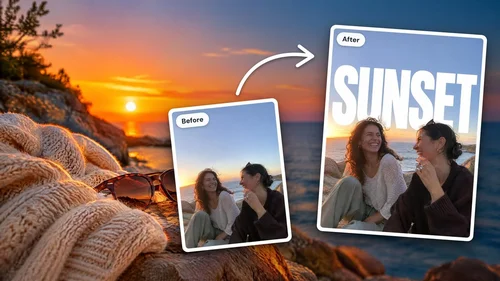
- MyEdit's Chat Photo Editor made five looks Markup can't, from one written request each in a browser: words behind people, a neon glow, a curve, a sunset gradient and a film-camera date stamp.
- In my test, all five results from MyEdit's Chat Photo Editor were spelled right and left the faces as they were. Its default model, GPT Image 2.6 Sunburst (5 credits), returns a smaller photo: 1086 × 1448 from 1728 × 2304.
To add text to a photo on iPhone, open the photo in Photos, tap the Edit button, then Markup. Tap +, choose Add Text, type your words, style them with the Aa button and tap the check mark to save. It's free, it's already on your phone, and it's all you need for a plain caption.
Markup's text is plain, though. It can't glow, curve, blend colors or sit behind the people in your photo, and the iPhone can't stamp a date the way a film camera does. Below you'll find the Markup steps on an iPhone with iOS 26, then each of those limits with the prompt I used and what MyEdit made from the same photo, and finally how to do it yourself in Safari.
How to add text to a photo on iPhone with Markup
Markup is built into the Photos app, so there's nothing to install. These steps and screenshots come from an iPhone 13 mini running iOS 26.6.1, and they match Apple's own Markup instructions.
Step 1
Open your photo and tap Edit
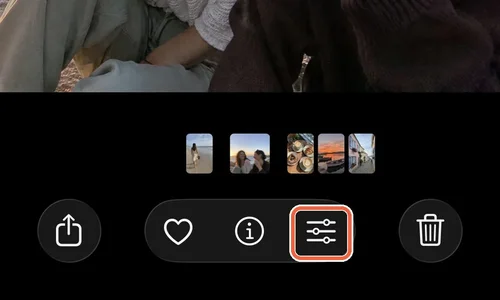
Open the photo in Photos and tap the Edit button: the icon with three sliders in the bar at the bottom of the screen.
Step 2
Open Markup and tap +
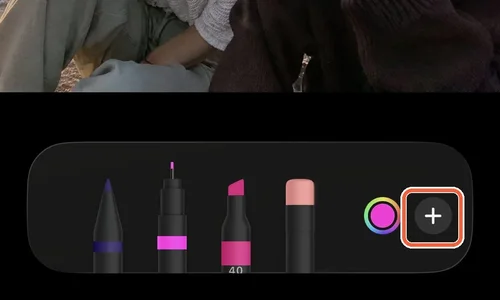
In the editing screen, tap the Markup button. Markup opens with its pens along the bottom; tap the + button at the end of that bar.
Step 3
Choose Add Text
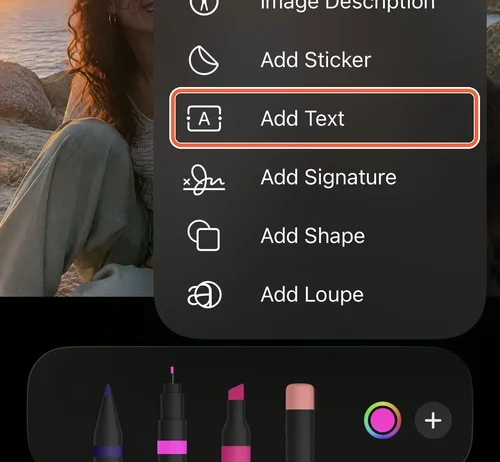
The menu lists Image Description, Add Sticker, Add Text, Add Signature, Add Shape and Add Loupe. Tap Add Text, and a text box appears on your photo.
Step 4
Type your caption
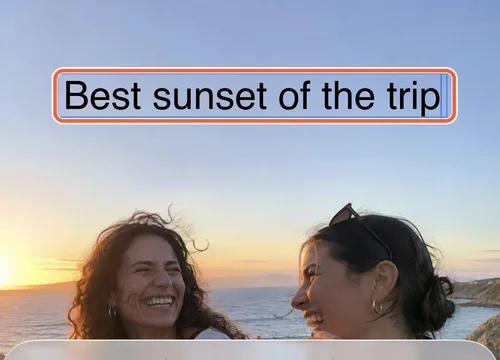
Type your words into the text box. Short captions read best on a phone: mine was "Best sunset of the trip", five words.
Step 5
Style it with the Aa button
Tap the text once to select it, then tap Aa. You can turn on bold, italic, underline or strikethrough, change the size (60 by default in my test), pick a font from the menu (Helvetica by default) and choose one of four alignments. The circle to the left of Aa sets the color: 12 colors, plus More Text Colors.
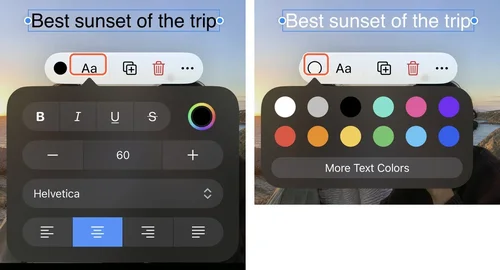
Step 6
Move it into place and save
Drag the text where you want it. Then tap the blue check mark at the top right to close Markup, and tap Done once more in the editing screen to save your photo.
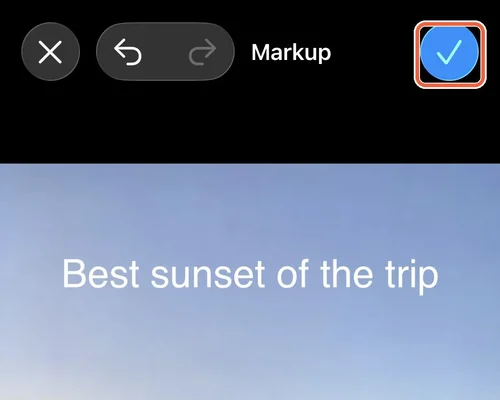
Markup is quick, and for a short caption on a clear patch of sky, like mine, plain white text works well. But that's as far as it goes: the formatting panel has no shadow, outline, glow or background box, and the text always sits on top of your photo.
What Markup can't do, and how MyEdit fixes it
On the same seaside photo I used in Markup, I asked MyEdit's Chat Photo Editor for five things Markup can't do, one request each, with its default model, GPT Image 2.6 Sunburst, on November 24 and 25, 2026. MyEdit is our own product, and the same requests work in any AI photo editor that edits a picture from a written description.
Before looking at any result, I set the pass mark: the words spelled exactly as asked, easy to read on a phone, the look and place I asked for, and the faces and everything else left as they were. Each section shows the limit, the prompt I used and the result.
Text behind people
Markup's text always sits on top of your photo, so it can't go behind a person.
Sample prompt
Add the word "SUNSET" in huge bold white capital letters across the sky, behind the two women, so their heads and hair overlap the bottom of the letters like a magazine cover. Make the word fill most of the photo's width. Spell it exactly as written. Keep everything else in the photo exactly the same: the two women, their faces, hands and hair, the sea and the sunset.
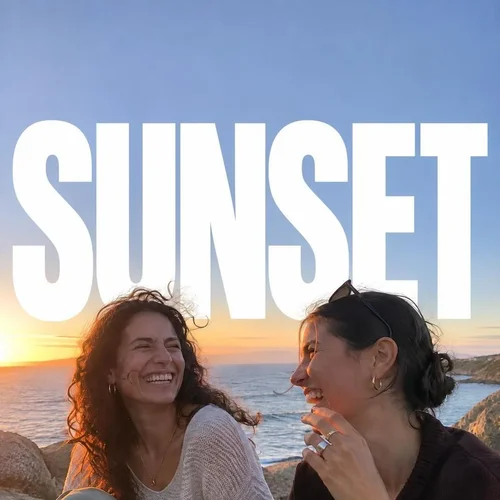
Pass. Chat Photo Editor tucked "SUNSET" behind both women from one request and left the rest of the photo as it was. Their heads and hair overlap the bottom of the letters, like on a magazine cover.
Glowing neon letters
Markup's text has no glow, metallic or neon effect: it's flat color only.
Sample prompt
Turn the caption "Best sunset of the trip" into a warm neon sign glowing in the clear sky above the two women, centered: handwritten-style neon tubes in orange and pink, with a soft glow around the letters, as if the sign were lit up in the sky. Spell it exactly as written. Keep everything else in the photo exactly the same: the two women, their faces, hands and hair, the sea and the sunset.

Pass. The caption came back as orange-to-pink neon tubes with a soft glow, spelled right, and the two friends weren't touched.
Curved text
Markup only writes in straight lines.
Sample prompt
Add the caption "Best sunset of the trip" in white letters that follow a gentle curve, arching over the two women like a rainbow in the clear sky above them, centered, with a soft shadow. Spell it exactly as written. Keep everything else in the photo exactly the same: the two women, their faces, hands and hair, the sea and the sunset.

Pass. The caption arches over the two women in white letters with a soft shadow. The curve is gentle rather than a half-circle.
Colors that match your photo
Markup fills text with one solid color, so it can't pick up the shades of a sunset.
Sample prompt
Add the caption "Best sunset of the trip" in the clear sky above the two women, centered, in bold rounded letters filled with a gradient that matches this sunset: warm orange at the bottom of each letter fading to soft pink and then lavender at the top, with a subtle soft shadow. Spell it exactly as written. Keep everything else in the photo exactly the same: the two women, their faces, hands and hair, the sea and the sunset.
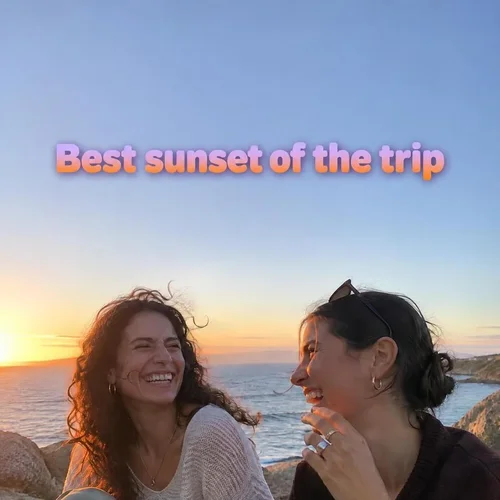
Pass. The letters fade from warm orange at the bottom to lavender at the top, the same colors as the sky behind them.
A film-camera date stamp
The iPhone's Camera can't stamp the date on a photo, and a date typed in Markup is just plain text.
Sample prompt
Add a date stamp in the bottom-right corner of the photo, like an old film camera: the text "11 24 '26" in small glowing orange digital numbers, slightly soft as if printed on the film. Spell it exactly as written. Keep everything else in the photo exactly the same: the two women, their faces, hands and hair, the sea and the sunset.
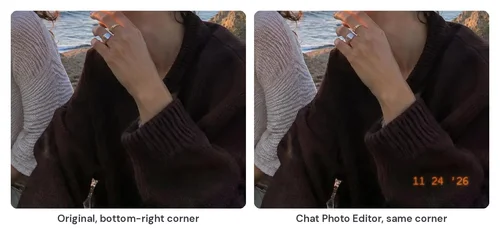
Pass. "11 24 '26" is spelled right, in orange digits in the corner. They're plain rather than glowing like real film digits, and small, so zoom in to check them before you download.
One limit it didn't fix in my test: text over a bright spot. Markup has no outline or shadow, so I asked Chat Photo Editor to put the caption over the setting sun with a dark outline. With GPT Image 2.6 Sunburst the lettering looked off, and Nano Banana Pro repainted the whole sky a brighter yellow. For now, a plain patch of sky, like the one in my Markup photo, is the safer place for a caption.
Outside the new text, each of the five results above changed less than 0.1% of the photo when I compared it with the original pixel by pixel, and I couldn't see any difference in the faces. The photo you get back is smaller, though: GPT Image 2.6 Sunburst returned 1086 × 1448 pixels from my 1728 × 2304 photo. That's plenty for a phone, a message or a story.
How to add styled text in Safari with MyEdit
Chat Photo Editor runs in your iPhone's browser, so there's no app to install: you upload your photo, describe the text you want, and download the result. Here's the whole process with a simpler request, a handwritten caption.
Step 1
Upload your photo in Safari
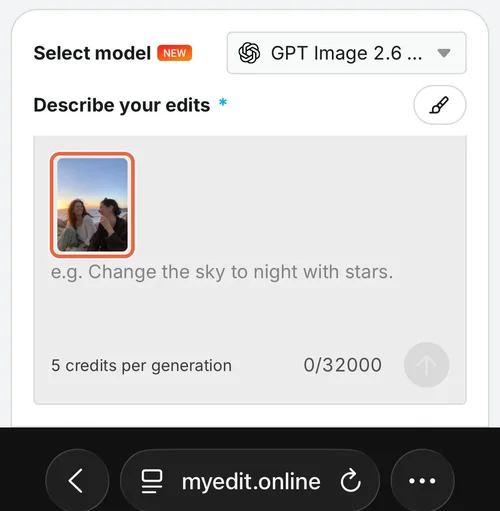
Open Chat Photo Editor in Safari, tap Choose a file and pick your photo. It takes JPG, PNG, GIF, WebP and BMP files up to 50 MB. Your photo then appears inside the Describe your edits box.
Step 2
Pick a model and describe your text
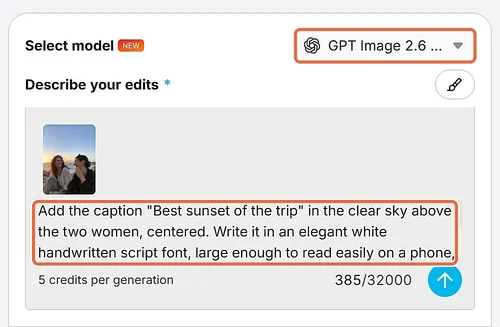
GPT Image 2.6 Sunburst is the default model, costs 5 credits per result and made every look above. In Describe your edits, put your exact words in quotes and say how they should look, where they go and what must stay the same. You'll find the prompt I used right after these steps.
Step 3
Check the spelling, then download
Tap the arrow button. Each of my results arrived in about 30 seconds. Open it, read every letter, and if it's right, tap the download button on the image. To try another look, choose Original under Choose a photo to edit and tap Edit the photo, so your next request starts from the untouched photo.
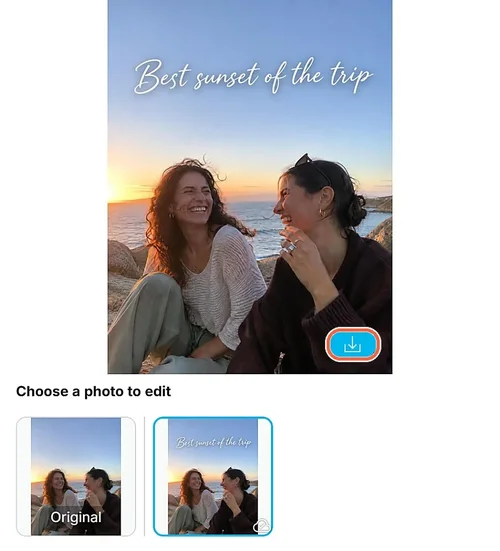
The prompt I used in Step 2
Add the caption "Best sunset of the trip" in the clear sky above the two women, centered. Write it in an elegant white handwritten script font, large enough to read easily on a phone, with a soft shadow so it stands out against the sky. Spell it exactly as written. Keep everything else in the photo exactly the same: the two women, their faces, hands and hair, the sea and the sunset.
The underlined parts set the exact words, the place, the look and what must not change. Swap them for your own caption and style.
Which model? Nano Banana Pro, in the same list, costs 6 credits and gives back a larger photo. In an earlier round of three caption styles on this photo, both models spelled every word right and passed my checks, and Nano Banana Pro returned 1792 × 2400 pixels, so pick it if you'll print or crop the result. My colleague Luigi Esposito compared the two model families more broadly in five same-prompt tests of GPT Image and Nano Banana in MyEdit.
Key features
 Adds text in the look you describe, from one written request
- Can tuck words behind the people in your photo, which Markup can't
- Model menu with GPT Image 2.6 Sunburst (the default), Nano Banana Pro and more
- Keeps your Original next to every result, so you can compare and start again
- Works in mobile browsers, and downloads have no watermark
Limit: every MyEdit plan, the free one included, lets you claim 3 free credits per day, and one result costs 5 or 6 credits, so one generation costs more than one day's free credits. Daily free credits stay valid for a month, so two saved-up days cover one result.
Chat Photo Editor for text on photos at a glance
Pros

- Adds glow, curves, gradients and date stamps that Markup can't
- Puts words behind people from one request
- Spelled every caption right in my test
- Runs in Safari, with nothing to install
Cons

 One result costs more than one day's free credits (5 or 6 credits)
- GPT Image 2.6 Sunburst returns a smaller photo than the one you upload
- Text over a bright sun didn't come out right in my test
Markup or Chat Photo Editor: which should you use?
Use Markup for a plain caption you can type and style in seconds, and Chat Photo Editor when the look matters, the words should sit behind someone or you want a date stamp. This is how the two compared on the same photo; the photo sizes are from my own downloads:
Markup in Photos | MyEdit's Chat Photo Editor | |
|---|---|---|
Cost | Free, built into your iPhone | 5 credits per result with GPT Image 2.6 Sunburst, 6 with Nano Banana Pro |
Text styles | Font menu, size, bold, italic, underline, strikethrough, 12 colors plus more | Any look you can describe: neon, curves, gradients, a film-camera date stamp |
Text behind people | No, text always sits on top | Yes, from one request in my test |
Spelling | Exactly what you type | Written by the AI, so check every letter (all were right in my test) |
Photo you get back | Your photo with the text on it | 1086 × 1448 with Sunburst or 1792 × 2400 with Nano Banana Pro, from my 1728 × 2304 photo |
Best for | Quick captions, dates and labels | Posts and titles where the look matters |
If the photo is headed for Instagram, my guide on posting a full photo on Instagram without cropping shows how to keep the whole frame, caption included.
More MyEdit tools for text on photos
- Add Text to Image: on a computer, this free tool lets you type the text yourself and choose fonts, colors and templates. Limit: it needs a bigger screen. At phone width it asks for a larger browser window, so on an iPhone, use Markup or Chat Photo Editor instead.
- AI Image Extender: if your subject fills the whole frame and there's no room for a caption, it adds more sky or background around your photo first. Limit: it uses credits, and the new edges are generated, so check them before you add the text.
Chat Photo Editor can also widen a photo into a new shape, as in my guide to making a LinkedIn banner that fits.
Test details and sources
- Test photo: one 3:4 photo (1728 × 2304) of two friends at a seaside lookout at sunset, made with MyEdit's AI Image Generator (GPT Image 2.6 Sunburst, 2K). It's AI-generated, and your own photos can behave differently.
- Markup: an iPhone 13 mini with iOS 26.6.1, on November 20, 2026, with the caption "Best sunset of the trip".
- Chat Photo Editor: November 24 and 25, 2026, on MyEdit Web in a browser on a computer (the Step 1 screenshot is from the iPhone in Safari; Steps 2 and 3 were taken at phone width). Default settings, no Select Area, every request on the original photo.
- Models: GPT Image 2.6 Sunburst for the five looks above; Nano Banana Pro for one retry over the bright sun and, in a first round, for three caption styles alongside GPT Image 2.6 Sunburst. Pass mark set before the results: exact spelling, easy to read at phone size, the look and place asked for, faces and the rest unchanged, and no visible loss of quality at phone size.
- Measurements: each result aligned with the original and compared pixel by pixel; "changed" is the share of the photo outside the new text that changed noticeably. Sizes read from the downloaded files.
- Steps checked against Apple Support: Use Markup on your iPhone on November 24, 2026. Credits as shown in the editor and on the MyEdit pricing page on November 24 and 25, 2026.
- MyEdit is our own product.
FAQs
1. How do I add text to a photo on iPhone?


Open the photo in Photos, tap Edit (the sliders icon), then Markup. Tap +, choose Add Text and type your words. Tap Aa to change the font, size and alignment, tap the color circle for the color, then tap the check mark and Done to save.
2. Can I add text to a photo on iPhone without an app?
Yes. Markup is built into the Photos app, so you don't need to install anything. For styled text, a browser-based AI editor such as MyEdit's Chat Photo Editor works in Safari, also with nothing to install.
3. Can I change the font in iPhone Markup?
Yes. Select the text and tap Aa: there's a font menu (Helvetica by default), a size setting, bold, italic, underline, strikethrough and four alignments. The circle next to Aa offers 12 colors, plus More Text Colors. There's no shadow, outline or glow option.
4. How do I put text behind a person in a photo on iPhone?
Markup always places text on top of the photo, so you need an AI editor. Ask for the word "behind" the person, with their head overlapping the bottom of the letters. In my test, MyEdit's Chat Photo Editor did it from one request.
5. How do I add a date stamp to a photo on iPhone?
The iPhone's Camera doesn't stamp dates, and Markup only adds plain text. An AI editor can add a film-camera style stamp: in my test, MyEdit's Chat Photo Editor added "11 24 '26" in orange digits to the bottom-right corner from one request.
6. Can I make curved text on an iPhone photo?
Not in Markup, which only writes in straight lines. In my test, MyEdit's Chat Photo Editor arched a caption over two people from one written request.
7. How do I make sure AI spells my text correctly?
Put the exact words in quotes, keep them short, add "Spell it exactly as written", and read every letter before you download. In my test, every result was spelled exactly as asked.
8. Is adding styled text to a photo free?
Markup is free. In MyEdit, every account can claim 3 free credits a day, valid for a month, and one result costs 5 credits with GPT Image 2.6 Sunburst or 6 with Nano Banana Pro, so two days of saved free credits cover one result.
9. Will adding text with AI lower my photo's quality?
It can change the size. In my test, GPT Image 2.6 Sunburst returned 1086 × 1448 pixels from a 1728 × 2304 photo, fine for a phone but smaller than the original. Nano Banana Pro returned 1792 × 2400. Faces and the rest of the photo looked unchanged with both.